

Fulfilment portal
The fulfilment portal gives your fulfilment customers real-time insight into the stock and orders you manage for them. This article shows what your customer sees and does in the portal, and how they can start.
The fulfilment portal
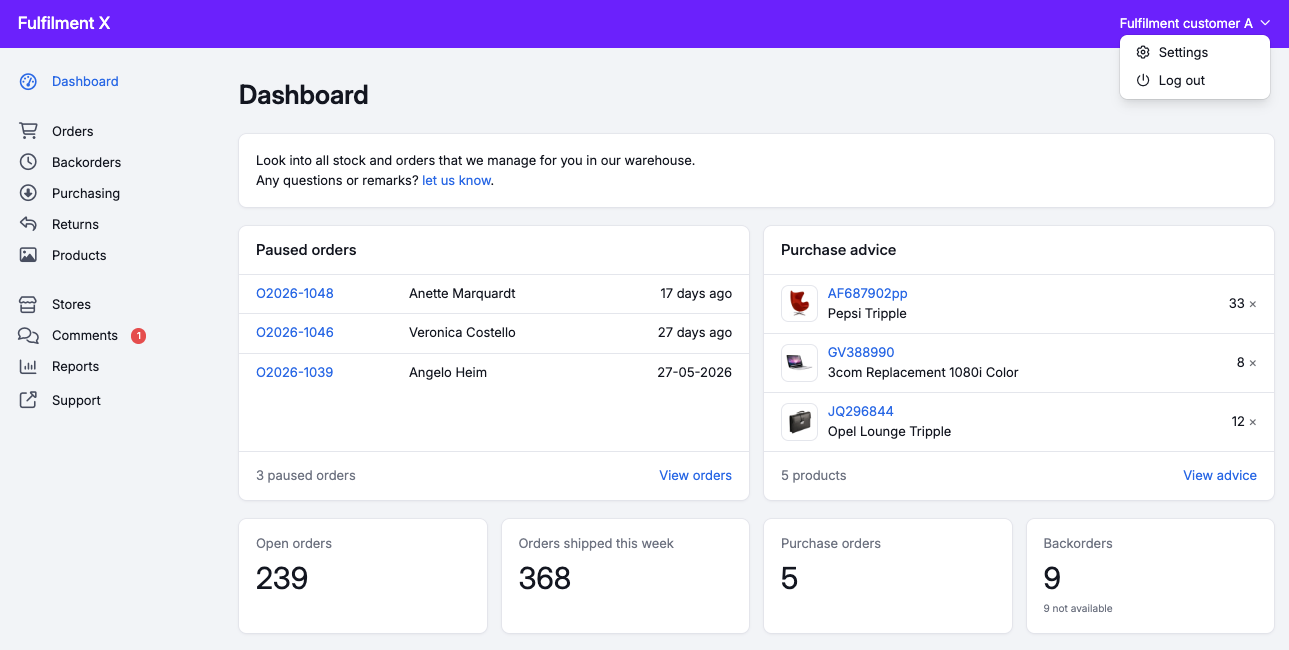
The fulfilment portal is a dedicated environment for your fulfilment customers. They log in themselves and find their current stock, orders and reports there. That way you spend less time answering questions about the status of stock or orders.
The dashboard shows the most important figures, paused orders and the purchase advice. You can show your own text here and customize the portal to match your own branding.
What your customer can see and do
Below you can read, per part, what insight and which options your customer has. A change made by your customer is applied immediately in your Picqer account, and the other way around.
Orders
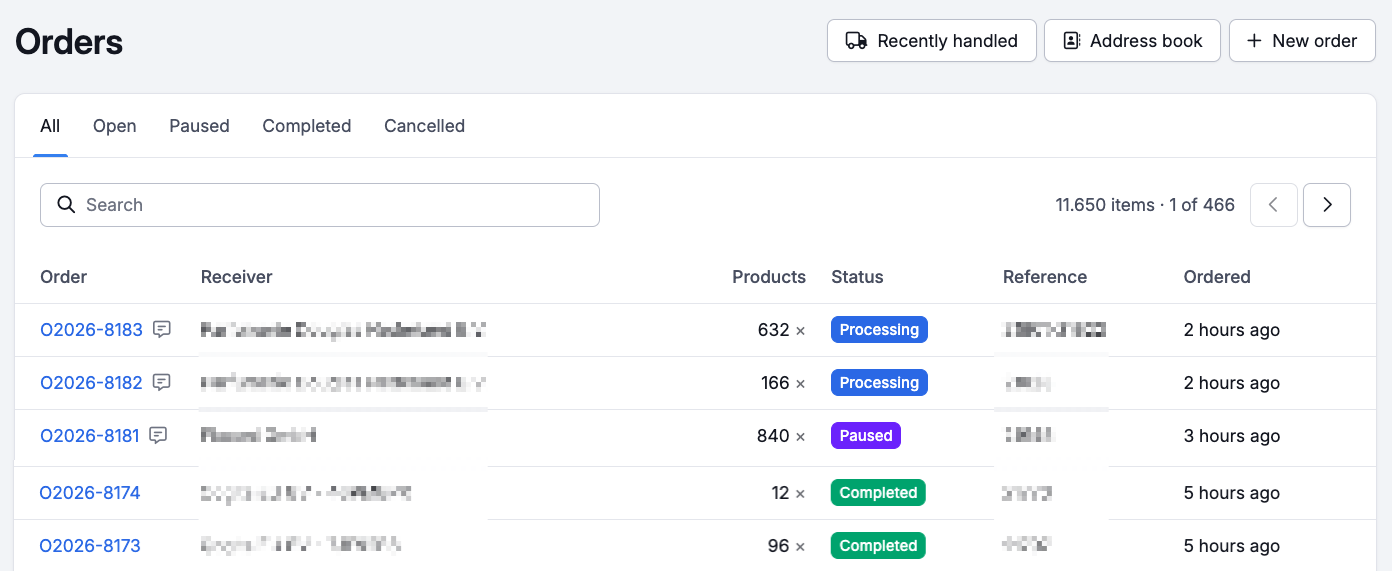
Customers see all orders linked to them. Each order page shows the matching picklist(s) and shipment(s). There is also an overview of recently processed orders, and the 'Backorders' menu item shows all products that aren't on a picklist yet.
Actions your customer can take
- Create a new order, filling in the lines by hand or with 'Import products from Excel'
- Manage their own address book (no effect on the addresses in your Picqer account)
- Duplicate an order
- Create a picklist for a partial delivery (configurable per customer)
- Pause an order and resume it again
- Change the delivery address and contact details
- Add products to an order that is being processed or paused. This works as long as the products fit on a paused or untouched picklist, or can sit as a backorder. Once the order is being collected, 'Add products' is greyed out and you add them instead.
A picklist is untouched as long as you have not started working on it. That ends once the picklist is assigned to someone, is part of a batch, is linked to a picking container, or has had something picked from it. If the picklist is paused, your customer can still add products, even when something has already been picked.
Cancelling is possible as long as the picklist is untouched: your customer can cancel individual products that still have an open amount, and the whole order as long as none of its picklists have been touched.
Purchases
Here your customer sees all purchases and adds new purchase orders. That way your warehouse knows which deliveries to expect. We use the warehouse you set in Picqer for this fulfilment customer.
Based on backorders and the set strategy, Picqer calculates a purchase advice. Your customer fills in the purchasing strategy on the products in the portal. The purchasing strategy set on the products in Picqer isn't taken into account for this advice.
The purchase advice in the portal works differently than the purchase advice in your Picqer account. The purchase advice in the portal is not split per warehouse or per supplier. Also, there is no smart forecasting based on sales history.
Actions your customer can take
- Create a new purchase order
- Change products and quantities (as long as a purchase order has no receipts yet)
- Cancel or close a purchase order
- Calculate the purchase advice
- Set the purchase strategy per product
Returns
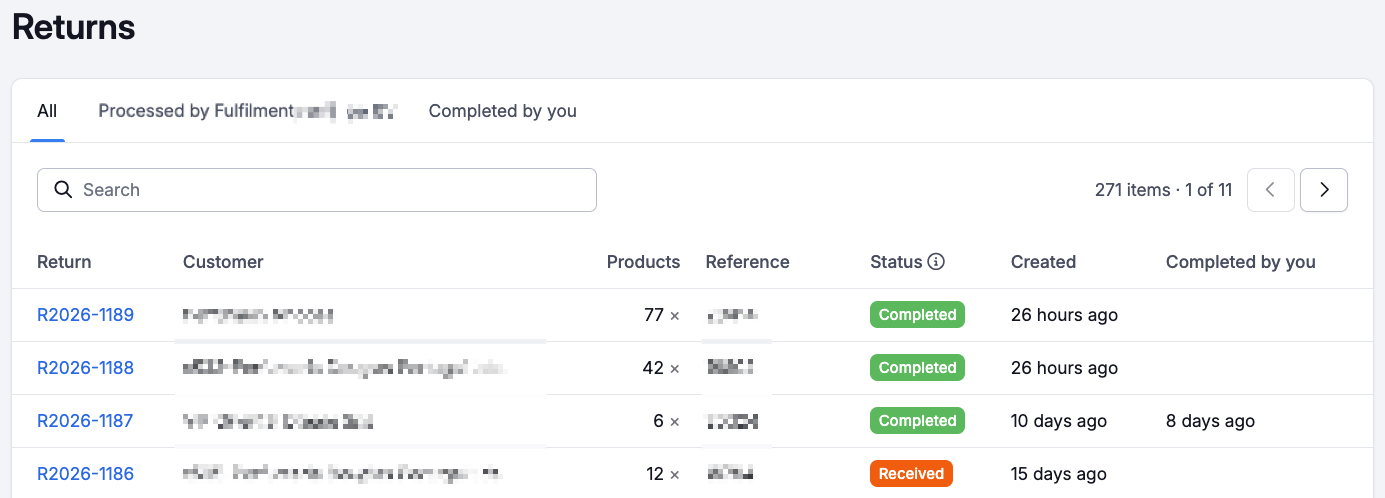
All returns are in the portal. That way your customer has a view of the returned products, replacement products and status updates. As soon as a return gets a final status, it appears under Processed.
If a return needs no further action, such as a refund, your customer clicks 'Mark as completed'. This is separate from the status you assign as the fulfilment company, and has no effect on the return in Picqer.
Products
Customers see all products linked to them, including the current stock per warehouse, the stock value, and the stock history.
With access to product management (configurable per customer) your customer can add and edit products.
Do you track a lot number or expiration date for a product? Then the product page also shows 'Stock per lot'. Your customer can also see which lot was picked on the picklist, and which lot came in on a receipt. Read how to set up traceability.
Actions your customer can take
- Add a product
- Edit a product (name, description, barcode, weight, dimensions, price, customs information, purchase strategy)
- Change the product type
- Activate or deactivate a product
- Delete a product
- Create a stock export
Stores
Customers see all connected stores, including the connection status, settings, and recently received orders.
Connecting a new store is possible from the portal. You receive a notification about this in Picqer and can then configure and activate the store.
Actions your customer can take
- Connect a new store
- Adjust the connection settings
Synchronize with the 'Actions' button (configurable per store connection):
- Import new products
- Import new orders
- Send the stock levels to the store
Comments
For communication with your fulfilment customer you can use Comments. Both you and your customer can add a comment to products, orders, picklists, returns, and purchase orders. When you add a comment, you choose whether it's shown in the fulfillment portal or internal only. Comments from your fulfillment customer are always visible. You'll find placed comments in the top right corner of Picqer.
Using an @mention in a comment refers directly to the fulfillment customer. This triggers a badge in the menu, along with a notification email. To send this email, Picqer needs an email address for the fulfilment customer: add it yourself on the fulfilment customer's page, or your customer can fill it in themselves in the portal.
Your customer can also mention your company in a comment. This only works once you've chosen a contact person: go to Settings > Fulfilment portal and pick who gets notified under 'Contact person for mentions'.
Reports
The portal contains several reports about the activities you carry out for the customer, their products and stock levels. Each report has its own detail page and can be exported to Excel.
How your customer gets started
Your portal is available at [yourpicqeraccount].picqer.com/fulfilmentportal. To log in, your customer needs a username and password. The access and other options you can manage per fulfilment customer.
Provide the login details to your customer, together with the URL and the explanation for end users. After logging in, your customer manages their account details via the name in the top right: username, password, language and email notification preferences can be adjusted.