
Changelog
Move stock between warehouses step by step, and more
Over the past month we've revamped Movements, the way you move stock between warehouses. Where that used to happen in a single click, it's now a task you carry out step by step, on web and in the app. In this changelog, you can read everything that's changed.
Revamped: Movements
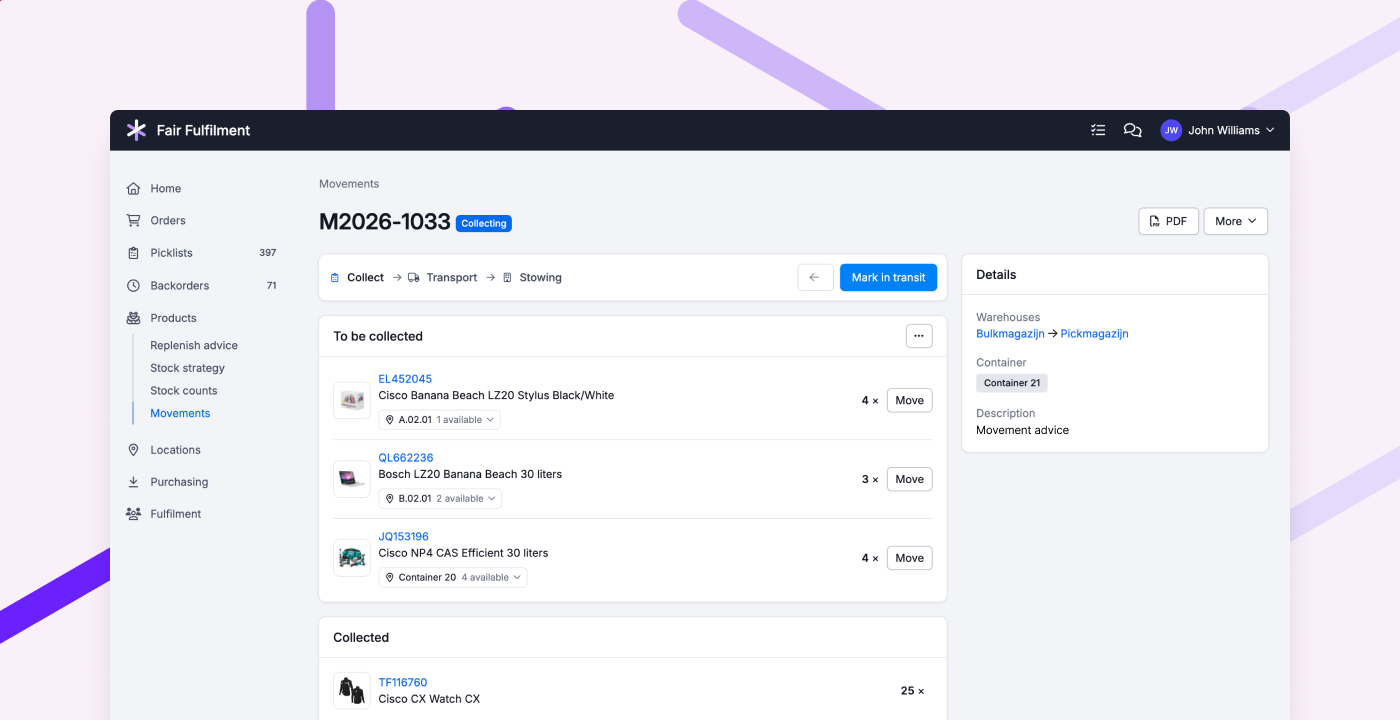
A movement in Picqer now follows the steps in the warehouse: you collect the products in a container, bring it to the other warehouse, and stow the products there. Each step has its own status, so everyone knows where the stock is and what still needs to happen.
Collecting and stowing happen in the app, sorted by picking route through your warehouse. For each product, Picqer suggests a location. You adjust it where needed, and the amount too. For example, if you'd rather take a whole pallet. At the end, you see exactly what was moved, between which locations, and where it differed from the plan.
We'd love to hear what you think of the new Movements. The old way is still available for now, but will disappear soon.
Other improvements
- When creating a batch, you can now also select multiple fulfilment customers, and filter by packaging advice.
- When counting stock, you can now add locations based on the products stored on them, filtered by fulfilment customer, supplier, or tag.
- When importing orders from WooCommerce, we now support more formats for the preferred delivery date.
- In the fulfilment portal, backorders are now grouped by order, just like in Picqer.
- When manually adding picklists to a batch, you now also see the batch title.
- When importing customers, you can now also update the delivery and billing address, including for existing customers.
Fixed
- When processing returns, you no longer have to choose a location for products with unlimited stock.
- Pickup points from QLS's new Shopify checkout are now imported correctly.