

Comments
Comments let you talk to colleagues and fulfilment customers right where the work is: on an order, picklist, product or purchase order. Type an @ to mention someone, and use the comments overview to see what needs your attention.
On this page
Visibility
A comment shows on the page where you post it, and in the comments overview. In a few places you can choose to show it further along the process as well:
- Orders and returns: 'Visible on picklists' also shows the comment on the picklists. This is on by default.
- Purchase orders: 'Visible on receipts' also shows the comment on the receipts. This is off by default.
If you work with fulfilment, you choose per comment whether your fulfilment customer sees it in the portal. Turn off 'Visible for fulfilment customer' to make it an internal comment. A comment that mentions the fulfilment customer is always visible to them. Read more about comments in the fulfilment portal.
Mentions
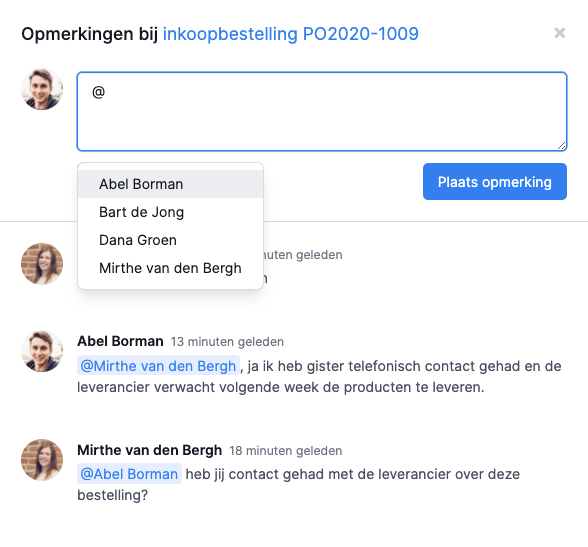
Want a colleague to see a comment? Type @ followed by their full name, for example @Abel Borman. Your colleague then gets a notification. In the top right of Picqer, a red number appears on the speech bubbles icon: the number of unread notifications. Clicking the icon takes them to 'For you'.
A notification is marked as read once you visit the page with the comment, or when you click 'Mark as read'. Notifications are personal: if a colleague opens the same comment, it stays unread for you.
Email notifications
To also get an email for each new notification, turn on the email option in 'For you'. You can do this in your profile too, and an admin can set it per user. It's off by default.
The email goes out as soon as the comment is posted, one per comment. It tells you who mentioned you and where, but doesn't include the comment itself.
Comments overview
Click the speech bubbles icon in the top right of Picqer to open the overview. It opens on 'For you' and has these tabs:
- For you: comments you're mentioned in. If you're the contact person for company mentions, this tab also shows comments in which a fulfilment customer mentions your company.
- @company name: every comment in which a fulfilment customer mentions your company, visible to all users. The contact person is shown at the top.
- My comments: comments you've posted yourself.
- Fulfilment customers: comments your fulfilment customers have posted in the portal. Pick a customer to see only their comments.
- All comments: every comment from every user.
Without fulfilment, you only see 'For you', 'My comments' and 'All comments'.