
Changelog
Stay on top of expiration dates, add products to orders, and more
Earlier this month, we launched traceability, which lets you track expiration dates and lot numbers. We’re now building on that to help you ship stock before it expires and quickly find the information you need during a recall. You can also easily add products to an order. Here’s what’s changed.
Stay on top of expiration dates and lot numbers
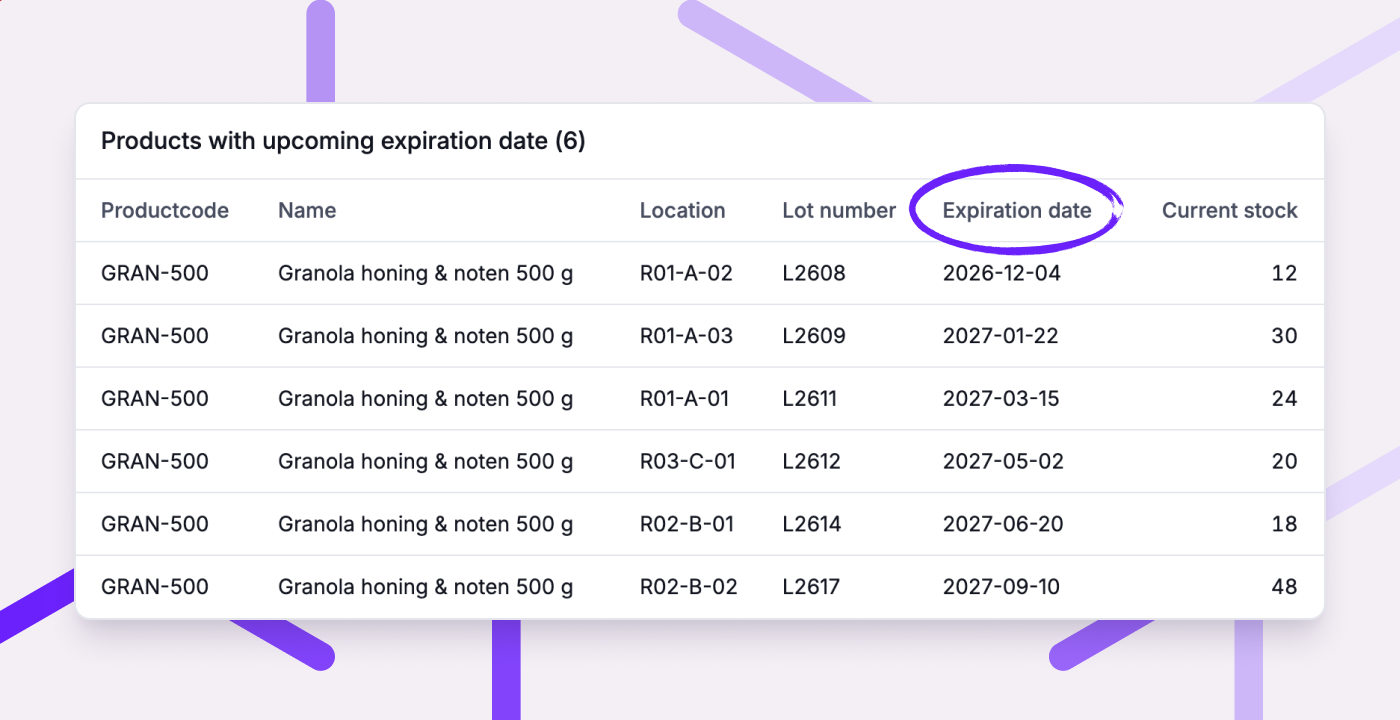
If you have several lots of the same product in stock, you want to ship those with the earliest expiration dates before they expire. And if a supplier recalls a lot, you need to find out quickly where it went. Picqer now helps you with both.
Expiration dates now help determine where to pick. When creating a picklist, Picqer now selects the location with the earliest expiration date. This is called FEFO: first expiry, first out. This means you ship the lot with the earliest expiration date first.
Spot stock that's about to expire. The new 'Products with upcoming expiration date' report lists stock that will expire soon or has already expired. This gives you time to sell it before it expires, or remove expired stock from your warehouse. Your fulfilment customers can view the report in their portal too.
Quickly find out which customers received a lot. During a recall, you no longer need to check individual picklists. From the product page, you can see which customers received a lot and where you still have stock from it. That tells you who to contact and which stock to remove.
Learn more about traceability and FEFO in our guide to lot numbers and expiration dates.
Add products to an order
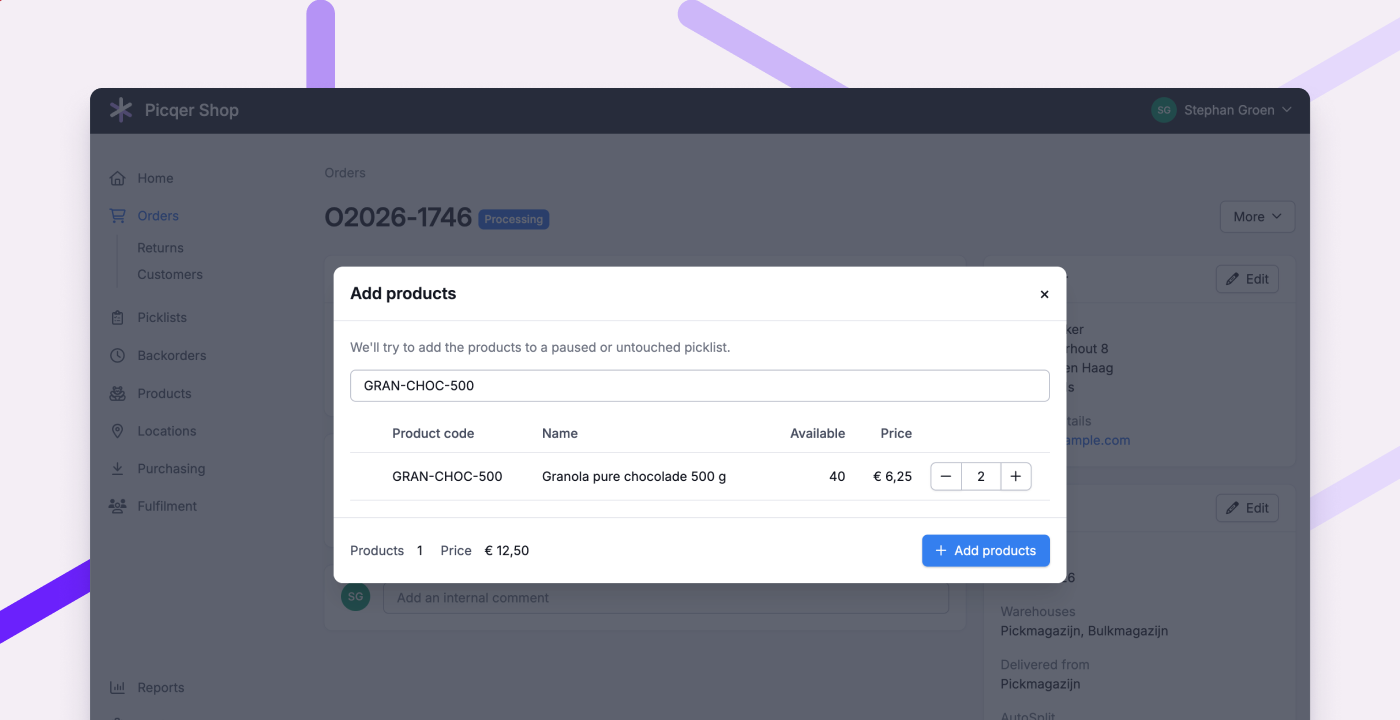
You can now easily add products to an order. Did a customer call or email with a last-minute addition, or want a different product? Add it straight from the order page, without resetting the order to concept.
- If picking hasn't started, the products are added to the open picklist.
- Already started picking? Pause the picklist first, otherwise Picqer creates a new one.
- Out-of-stock products go on backorder.
- Your fulfilment customers can do this themselves in the portal, as long as picking hasn't started.
Other improvements
- When a customer chooses pickup in Shopify, Picqer now marks the order as 'ready for pickup' when you close the picklist. Learn more about pickup orders
- Picqer now separates Dutch addresses into street name, house number and suffix before sending them to PostNL. This ensures that even tricky addresses, such as '2e Dorpsstraat 13b', appear correctly on shipping labels.
- Your fulfilment customers can now edit product descriptions themselves in the portal. They can also see which orders have been partially processed.
- You can now filter movement advice by fulfilment customer.
- If you sell virtual compositions from multiple warehouses, your stock levels are now more accurate. Picqer counts the components across all warehouses.
- You can now show the components of virtual compositions on packinglists, including product fields and lot details. This helps your customers check the contents of a set.
- Order pages load faster, especially for orders with lots of picklists or comments.
- You can now use customer remarks as a condition in order and picklist rules.
- The return history now shows who created the return, and the 'Returns processed' report shows who completed it.
Fixed
- Shopify orders with no billing name now import correctly, using the delivery name instead.
- Picklists and their PDFs now show the correct component quantities for virtual compositions, including nested compositions.
- Products on closed picklists no longer appear as 'to pick' in a batch.
- You can once again link locations in the app for products that have many locations.
- The correct free stock is now shown when moving stock to another warehouse.
- You can once again reverse the production of compositions with their own stock by entering a negative quantity.
- Products with unlimited stock are back in the 'Warehouse sales' report.
- Safari's password suggestions no longer cause the shipping profile menu to close.