

Batch presets
A preset is a predefined set of batch criteria. A preset helps you work faster and avoid mistakes by reusing fixed settings. For every type of batch you create regularly, you only need to set up a preset once.
When creating a batch, you’ll see a preview showing how many picklists match the criteria for each preset. This way, you know which batches you can create. You can do this on your computer or directly in the Picqer app.
You can organize presets into groups and manually define the order of groups and presets. This lets you show the most used presets at the top.
Manage presets
All users can choose a preset to create a new batch. Only administrators have the ability to create and manage presets. This can easily be done using the steps below:
Go to Create batch and click the Manage presets button.
Click Create preset or edit an existing preset.
Use a clear, descriptive name. This is what Picqer shows in the preview.
Optionally choose a group for the preset.
Specify which criteria a picklist must meet. Just like with a manual batch, you add the filters you need, such as warehouse, tags, product codes, locations, delivery country and shipping profile. You can also use filters to exclude. See the batch method for all filter options.
Set the preset to active if users may choose it. Set it to inactive if you want to hide it temporarily.
Click Save.
An inactive preset is not shown in lists where users choose presets, such as when creating a batch and in the Picqer app. The preset remains saved, so you can activate it again later.
Groups and ordering
Groups help keep the preset list organized. For example, you can create groups for different warehouses, shipping methods or walking routes.
You manually define the order of groups and presets. Drag and drop groups or presets to the desired position. Presets within a group are shown in the order you set.
Presets without a group automatically appear in the Other group. This group is always shown at the bottom. You can also manually reorder presets within Other.
Groups without presets are not shown in lists where users choose presets.
Deleting presets and groups
Do you no longer want to use a preset? In most cases, set it to inactive instead of deleting it. This removes the preset from selection lists, while keeping it available for later use.
When you delete a group, the presets in that group are not deleted by default. Picqer unlinks the presets from the group. After that, they appear in Other.
Do you also want to permanently delete the presets in a group? Select this option when deleting the group. Picqer then permanently deletes the group and the presets in that group.
Create a batch
Once you've added presets, you can use them for your next batch. Click Create batch under Batches. A preview appears showing all presets and the number of picklists that match each one.
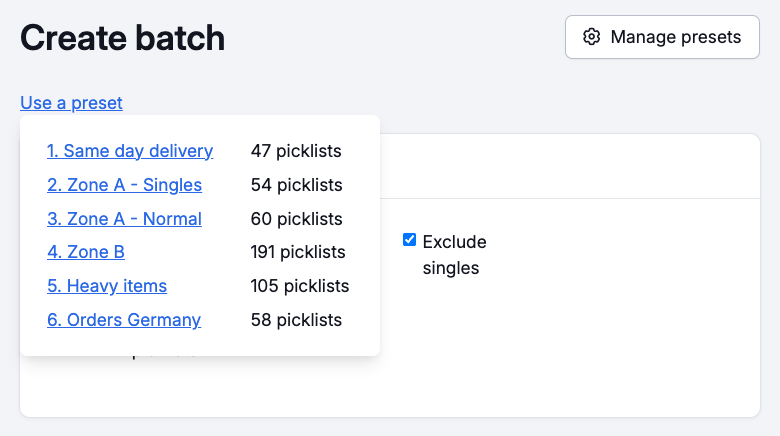
Select the preset you want to use for your next batch. Picqer creates the batch immediately, so it is ready to be picked.
Do you not want to use a preset? Click Create batch manually. This opens the manual form where you choose the batch type, number of picklists and criteria yourself.
Using the Picqer app, you can only create batches using an existing preset. Under batches, tap the plus icon in the top right to create a batch directly from the preview.
Tips
Descriptive name
Give the preset a descriptive name so everyone understands what the batch is for. Use groups and manual ordering to show the most important presets at the top.
Number of picklists
The number of picklists in a single batch depends on the cart or trolley you will be using. Take this into account when setting up your presets. Are you collecting a singles batch? Then a large container can hold many products, so you can collect many picklists in one batch. Creating a regular batch? With a cart holding 12 picking containers, you can process 12 picklists in one batch.
Commonly used criteria
Presets help you distinguish between picklists that haven’t been processed yet. This distinction can vary per company. We often see the following criteria used in presets:
- Singles only versus singles excluded
- Only products in specific locations (by zone or aisle)
- Picklists with webshop tag X
- Tags for shipping options, such as “same day delivery”
- Other tags added by order rules, such as "fragile" or "heavy"
- Picklists without a specific tag, or without a specific delivery country (excluding)
- Mixed picklists, with products on two kinds of locations. You do this by combining criteria.