Registering extras
Extras let you record work that falls outside your normal processing, like adding a handwritten card, packing products extra carefully or stickering them.
You register an extra on a picklist, receipt or return, or as general work for a fulfilment customer. You can then see per period what you did for each customer in the fulfilment customer report, as a basis for your invoicing.
Creating extras
Start by creating the types of extra work your team can register.
Go to Settings > Extras and click 'New extra'.
Enter a 'Name' and, if you like, a 'Reference'. The reference is a unique code that identifies the extra in exports and the API.
Click 'Save'.
To scan an extra, open it and click 'Print labels'. This prints a label with a barcode, the name and the reference. Put it somewhere handy, like at the packing station.
Once an extra has been registered, you can't delete it. Click 'Deactivate' instead. Its registrations are kept, but your team can no longer choose it.
Registering extras
You register an extra on a picklist, receipt or return of a fulfilment customer. There are two ways to do this:
- Scanning: scan the extra's label on the picklist, receipt or return. Scan the same label again and Picqer adds one to the count.
- Manually: click 'More', choose 'Add extra' and click the extra. You can search by name or reference. The extras you register most often for this fulfilment customer are at the top. Once an extra has been registered, you'll also find 'Add extra' on the 'Extras' card.
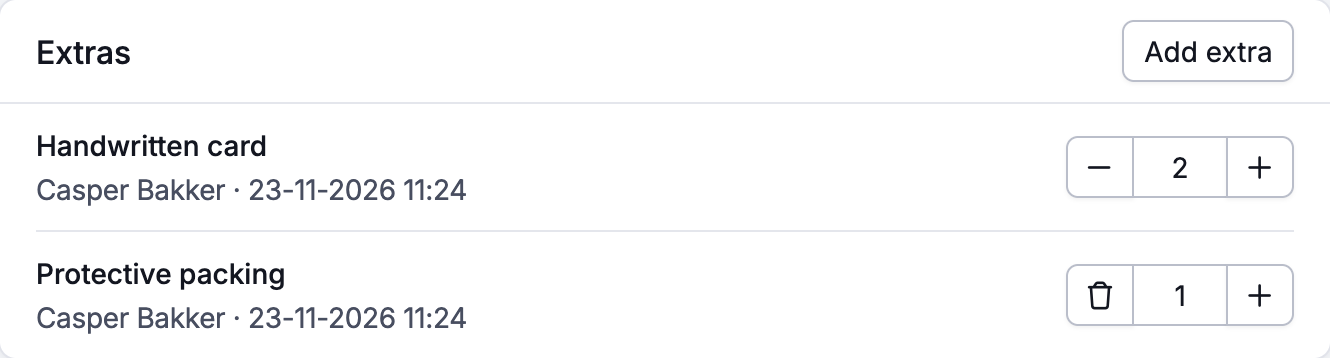
The 'Extras' card shows what has been registered: which extra, how many, by whom and when. Use the buttons next to the quantity to change it or remove the registration. You can also type in the quantity, for example 200 for 200 stickered products. Registrations older than a day are locked. Click the lock to edit one anyway.
Registering extras never stops you from completing anything. You can also add an extra afterwards, once the picklist, receipt or return has been completed.
In the app
In the app, you register an extra by scanning its label on a picklist or receipt. You can then change the quantity on the 'Extras' card.
General work for a fulfilment customer
Not all work belongs to a picklist, receipt or return. Think of a stock count or a custom report. You register that kind of work on the fulfilment customer itself.
Open the customer in the fulfilment customers overview.
Click 'More' and choose 'Extras'.
Click 'Add extra' and choose the extra. You can then change the quantity in the list.
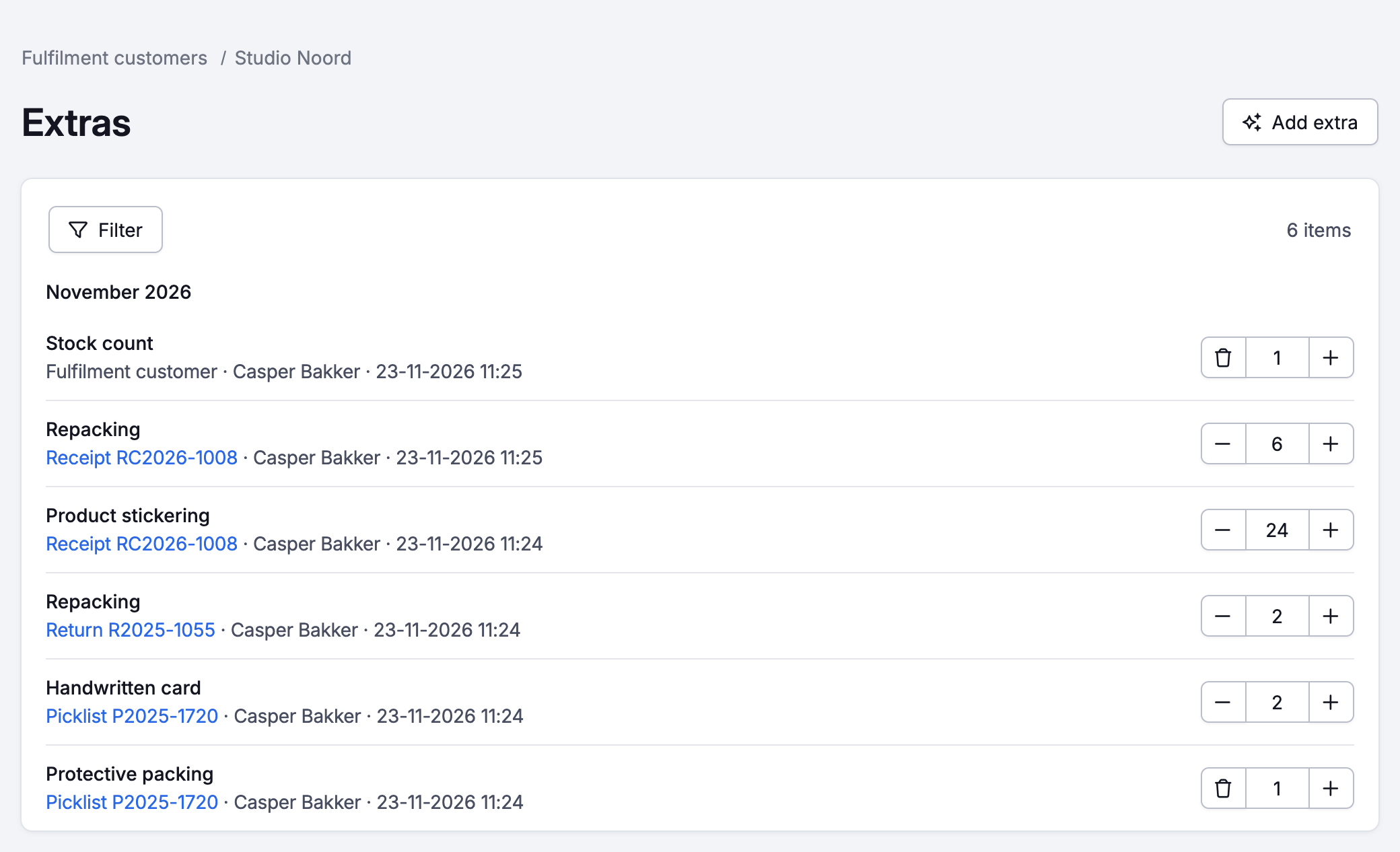
The same page lists every extra registered for this customer, including those on picklists, receipts and returns. Use 'Filter' to narrow them down by where they were registered, period, user and type of extra.