
Visiting Wear2work
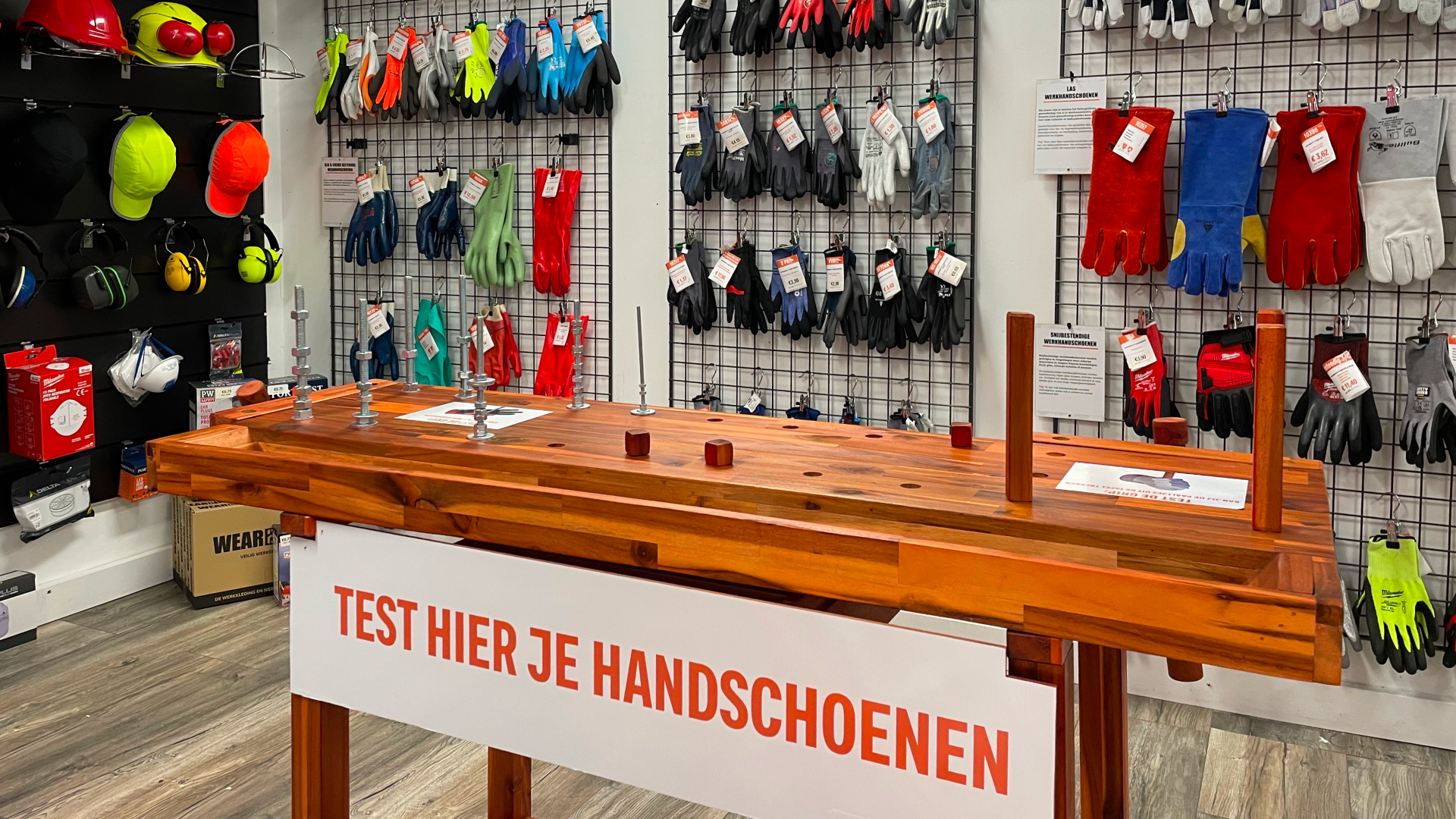
Wear2work invited us to visit them in Wijk bij Duurstede. They sell workwear, safety shoes and personal protective equipment. In addition to their webshop, they have a physical store and an in-house printing workshop. All parts of the company are literally and figuratively connected, with the warehouse as the heart of operations.
Melina and Elise gave us a full tour of the business. It was a fun and insightful visit! Here's what we saw.
- Wear2work has been using Picqer across all areas of the business since 2018.
- Their product range includes over 25,000 different items.
- Products are sold through the physical store, Dutch webshop, Belgian webshop and via Bol. All orders are fulfilled from in-house stock to ensure fast delivery.
- They serve both business and private customers. Fun fact: during carnival, pink overalls were a top seller.
Understanding Picqer first-hand
The tour started at the office, where the customer service, purchasing, marketing, administration and sales teams all sit together. It quickly became clear that Melina and Elise know Picqer inside out, even though they don’t work in the warehouse. “We try things out, think logically and constantly ask ourselves how we can work more efficiently. That’s why it’s so important for us to understand how Picqer works,” Elise explained. Some marketing campaigns are even discussed with logistics first, to make sure the ideas are practical. This way, customer promises can be kept, and the team can work smoothly. And it works well—everyone was working calmly and clearly knew what needed to be done, even when exceptions came up.
E-learning for onboarding and understanding
In addition to Picqer, they use other tools, for example in the print workshop. It’s not ideal, but they’ve found their way. We were curious whether this makes onboarding new team members harder. “Yes, it does take more time,” they said, but they don’t see that as a problem. “We’ve developed e-learning courses that include software training, print workflow and product knowledge. These are followed by new hires, but even team members who’ve been here for a while have done them. It’s a great way to onboard and creates mutual understanding. And anyone can jump in when needed!”
Trying out new receiving workflows
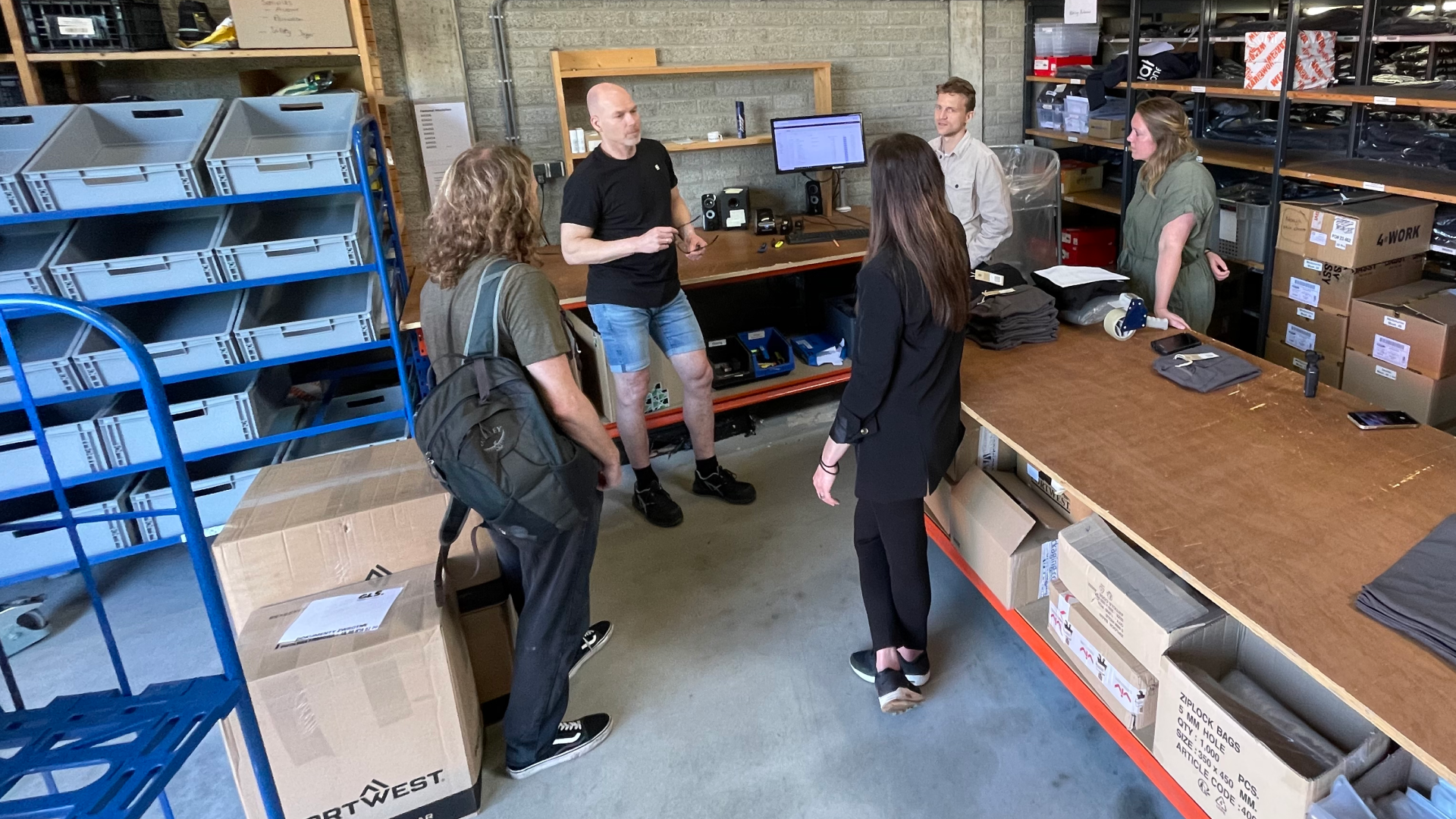
From the office, we walked into the warehouse and started at the receiving and returns area. We noticed they weren’t yet using the new receiving workflow, so we recommended trying it out. This feature, still in development, already offers more flexibility. Products are added to stock as soon as they are processed, rather than after the entire receipt is completed. You can also register items to multiple locations and view a log showing which products have already been processed, how many and where.
Reducing returns
Selling clothing online often comes with returns. To minimize this, Wear2work provides detailed size charts and clear product photos. They even have an in-house photo studio, allowing them to show how the clothing fits on real people. They also ensure product photography is consistent, giving the website a polished look and making it easier for customers to compare items.
Inventory spread across three warehouses
Next, we explored the rest of the warehouse, where orders are picked and packed. Melina and Elise explained how their inventory is spread across three warehouses:
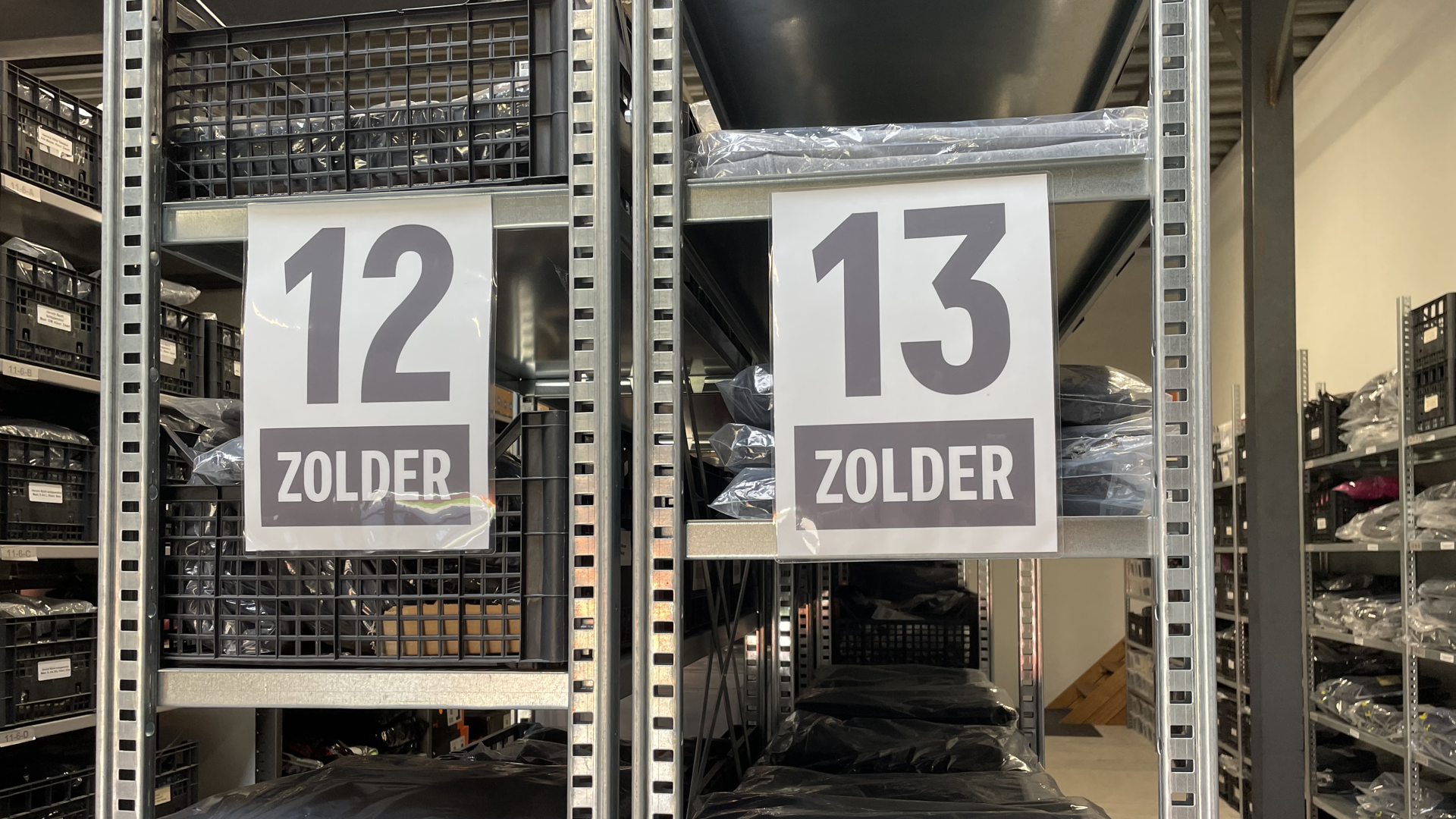
- The warehouse is divided into color-coded zones. Shoes are in the blue zone, bestsellers near the packing table in the white zone, and slow movers in the black zone on the mezzanine.
- Bulk inventory is stored in a separate warehouse. From here, the main warehouse is replenished. Seasonal items like winter boots are also stored here during off-season periods.
- The store itself functions as its own warehouse. One size of each item is displayed, but thanks to the connected warehouse, customers can take home the size they need right away.
Picking multiple orders at once
Orders are currently picked using printed picklists. To work more efficiently and sustainably, we recommended switching to paperless picking with the Picqer app—Wear2work also sees this as a future improvement. For now, we suggested using batches based on location tags. That way, orders with items from the same zone, such as the blue zone, can be picked all at once.
Orders with custom printing
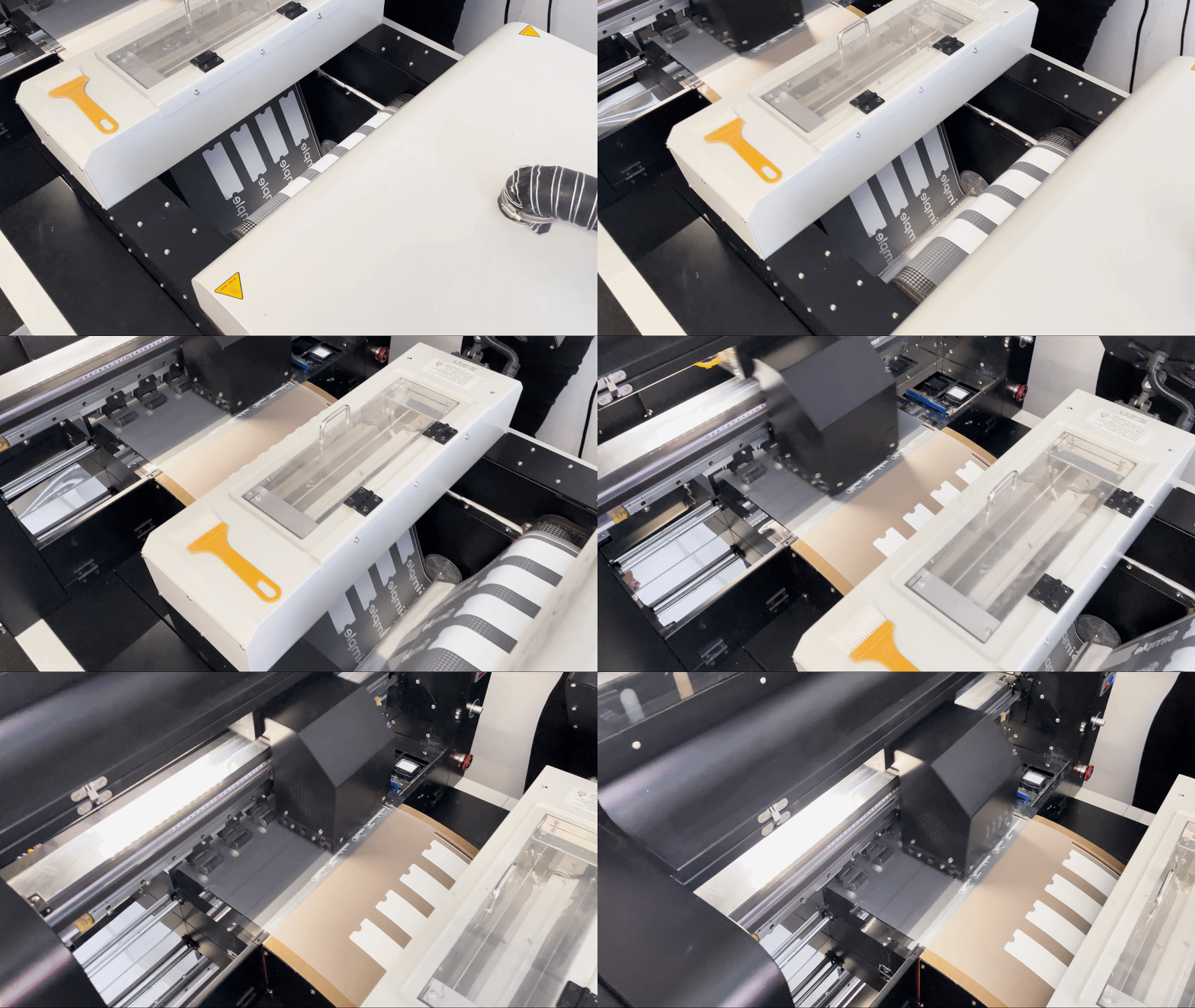
In the webshop, customers can choose to have clothing printed. These orders are automatically tagged with "print," and the print location is added as a product in Picqer. This tells the picker to pick the items but not pack them yet. The order is placed in an open box on a dedicated rack near the printing area. The picklist is then snoozed, the printing team gets to work, and once finished, the package is shipped.
Picqer in the store
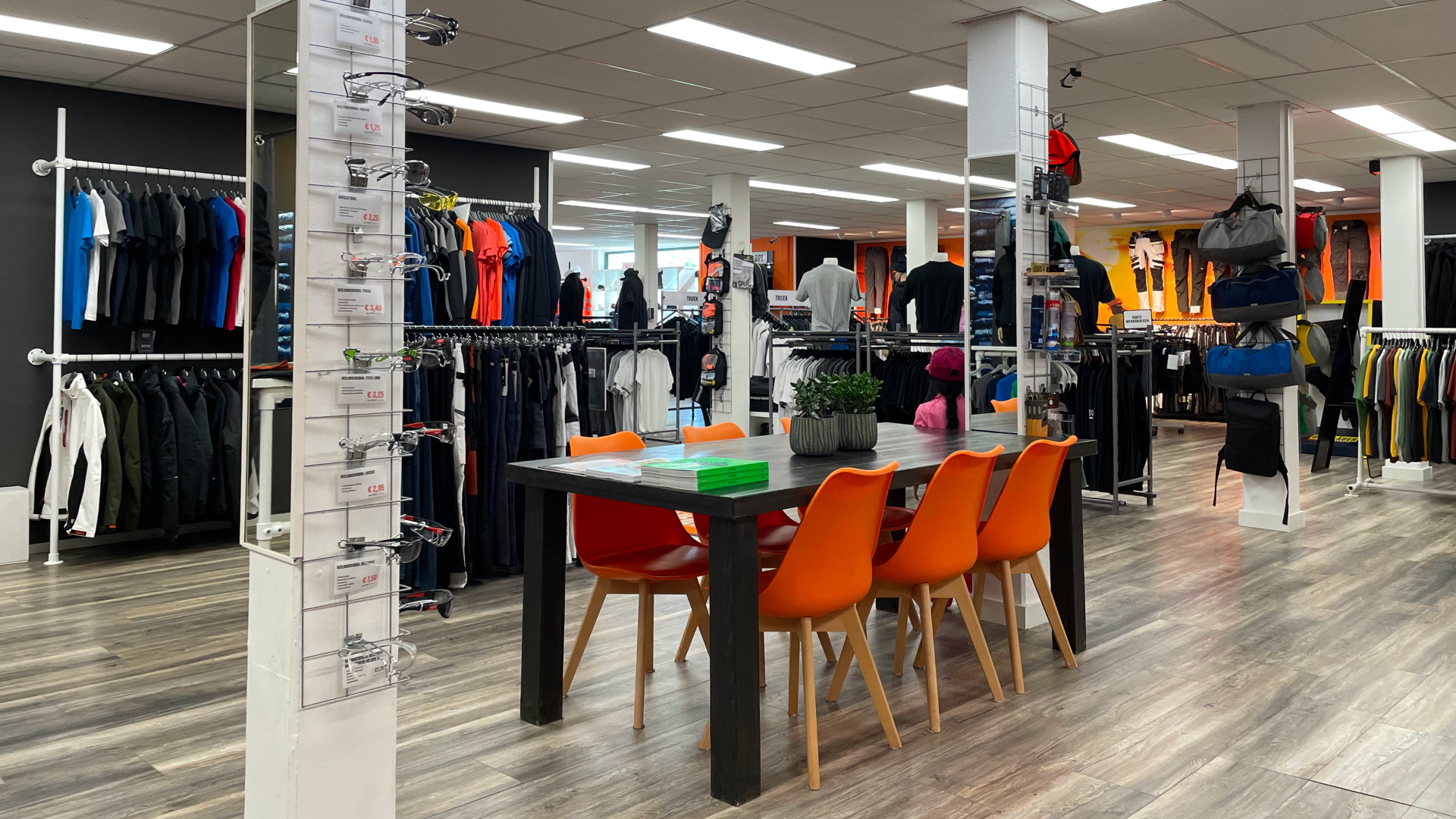
From the warehouse, we walked through to the store—a spacious area where the same items from the warehouse are neatly displayed. Customers can try on clothing and test protective gear. If they need a different size or more items, staff can quickly pick what they need from the connected warehouse. At checkout, the cashier creates a new order in Picqer with the shipping method set to “in-store pickup.” “We really appreciate that Picqer is stable. Because we also use it in the store, it’s frustrating if there’s an issue and we can’t help a customer. But even when something does happen, we know there’s no need to stress, because it’s usually resolved quickly.”
Inspiring each other
Melina and Elise clearly have a strong drive to improve and optimize processes. They are curious about how other companies work too: “Can we learn from each other as entrepreneurs?” They shared that our blog posts and events inspire them, not only in learning new software features but also by seeing how other warehouses operate. That’s great to hear, because that’s exactly why we do what we do.
Changelog
Changelog: Improvements to app navigation and API
This changelog covers updates to the app navigation, API improvements, and several other changes from the past few weeks to help you work more efficiently.
Easier navigation in the app
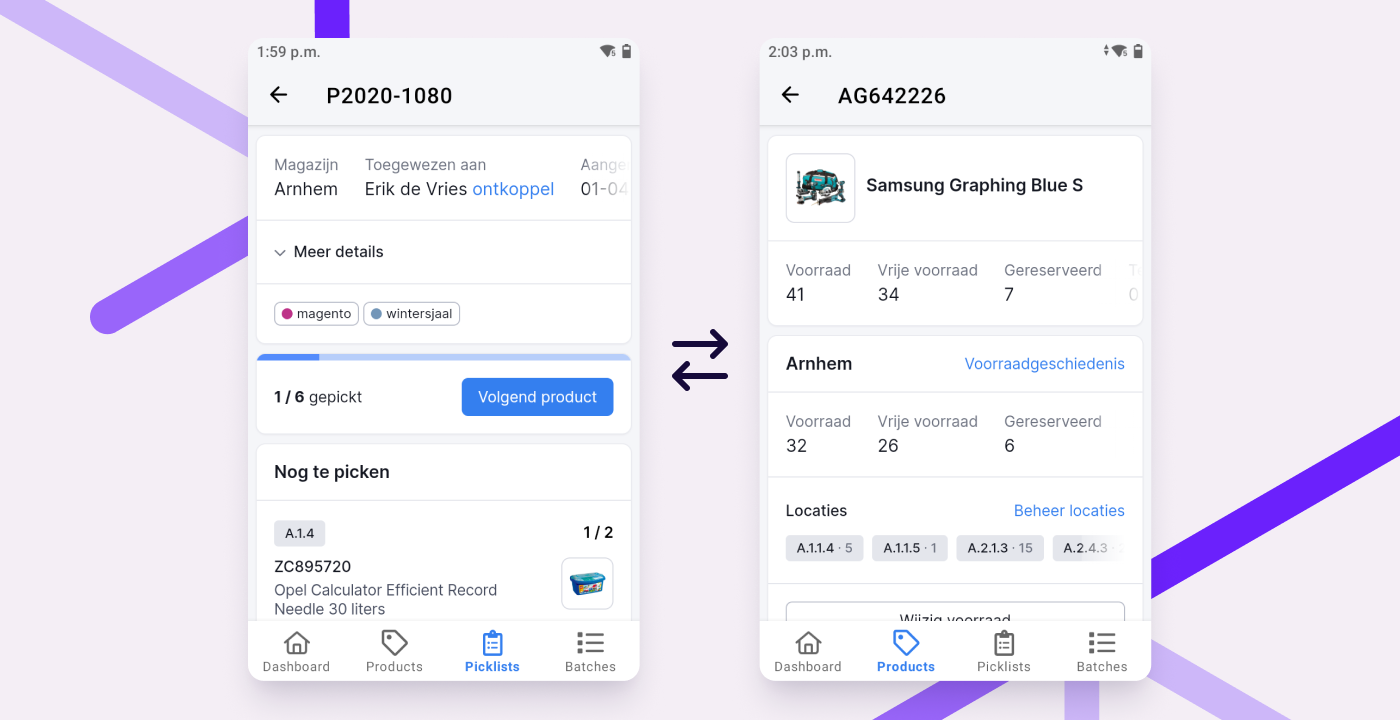
While picking or restocking, you often want to look up a product. Maybe an item is in the wrong place and needs to be moved, or you need to free up space for something new. After that, you want to continue with your picklist, batch or receiving task.
We’ve made that easier by displaying the navigation bar at the bottom of every detail page, not just on overview pages. This lets you quickly switch between a picklist, batch or receipt and a product, then back again. The app remembers where you left off, so you won’t need to search for your picklist, batch or receipt again.
You can now also return to the picklist overview directly from any picklist using the navigation bar. This is useful when you've scanned multiple picklists and want to jump back to the overview with one tap.
API improvements
Retrieve multiple specific products in one request
With the new idproducts filter on the products endpoint, you can now retrieve multiple specific products in one API request. This is more efficient and faster than sending separate requests.
Retrieve nested product compositions
Our API endpoint for retrieving product parts now supports fetching nested compositions. Use the parameter nested=true to retrieve all parts of a composition and its sub-compositions in one go. Example: /api/v1/products/1/parts?nested=true.
Integration improvements
- WooCommerce: We now import ParcelPro pickup locations on orders.
- Lightspeed: We now import Sendcloud pickup locations on orders.
- Shopware 6: We now support the official PostNL plugin. This includes pickup location selection, delayed shipping and evening delivery when importing orders from Shopware 6.
Other improvements
- When creating a singles batch, we prioritize products that appear on 3 or more picklists. This results in batches with more repeated products, which makes picking more efficient.
- If you've created multiple shipments for a single picklist, all of them can now be included in the shipping notification to the customer. This helps prevent customer service questions about split shipments. Learn more in our help article.
- On the new container history page, you can now see when and which products were linked or unlinked.
- For numeric conditions in rules (like product quantity), you can now use "equals" as a condition.
- On the updated singles batch page, you can now reassign the responsible person.
- When calculating the value for insured shipments with PostNL or MyParcel, we now use the purchase price instead of the selling price to avoid unnecessary insurance costs. If the purchase price is empty (€0.00), the selling price is used instead.
- For shipments containing a virtual product composition, we now calculate the insured amount based on the composition value only, not the individual parts. If the composition’s purchase price is €0.00, we fall back to the selling price.
- If you cancel a batch before any items have been picked, it will now be marked as "Cancelled" rather than "Complete."
- Cancelled orders in Picqer that are partially refunded in Shopify will no longer be reopened in Picqer.
Shipping labels: which printer should you use and how do you set it up?
When you’ve packed an order, it’s great to have the correct shipping label print automatically. No need to type in an address, and you can keep things moving quickly. But how do you set that up?
It all starts with choosing the right printer. There are a lot of options out there, so it’s easy to get overwhelmed or end up with the wrong one. This article explains why we recommend Zebra label printers and how to install them the right way.
Which Zebra label printer should you choose?
We believe the Zebra ZD421 series is the best option for warehouse use. This series is affordable, very durable and the labels are inexpensive. The status lights and buttons are intuitive, and setup is much faster compared to earlier Zebra models. Be aware that there are two types in this series: the ZD421d and the ZD421t. Here’s the difference:
- The d stands for “direct thermal,” where the label itself is heated and prints without any extra materials.
- The t stands for “thermal transfer,” which uses a ribbon—a roll of black plastic—that gets pressed onto the label. This means you’ll need to replace both the label roll and the ribbon regularly.
The benefit of ribbon printing is that labels last for years. But for shipping labels, a few months is more than enough. That’s why we recommend the d version for printing shipping labels. It also saves you money because there’s no ribbon to replace.
We’ve selected the best warehouse hardware for you in our Picqer Shop, including the Zebra ZD421d label printer.
How to install the printer
Installing a Zebra label printer isn’t difficult, but it’s important to do it correctly. That way, you can rely on your hardware when operations are running. Use this step-by-step guide to install the printer:
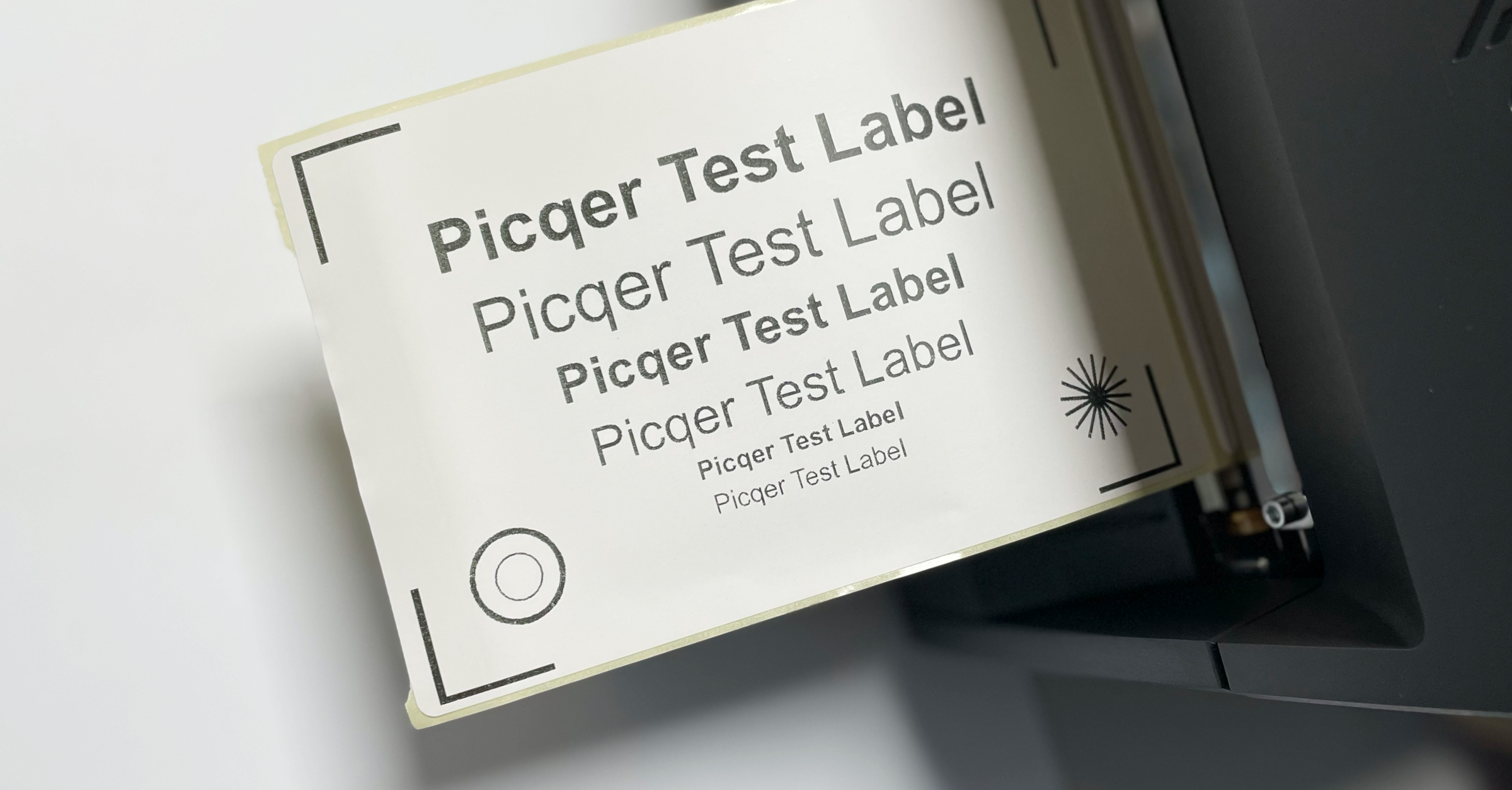
After installation, print a test label to make sure everything works. You can use this test label. If the label is clearly readable and shows all four corners, the setup is complete.
Automatically printing shipping labels with Picqer
If you use Picqer in your warehouse, printing shipping labels can be fully automated.
- First, connect your shipping carriers. With our standard carrier integrations, setup only takes a few clicks.
- Install PrintNode to enable automatic printing. PrintNode is included in your Picqer subscription.
- Add your printers in Picqer’s settings.
Once all products have been picked and checked, Picqer creates a shipment with the carrier. It takes into account the order weight and any customer preferences. The correct shipping label prints automatically. Picqer also sends the tracking code to your webshop. You can choose to automatically send a shipping confirmation email to your customer.
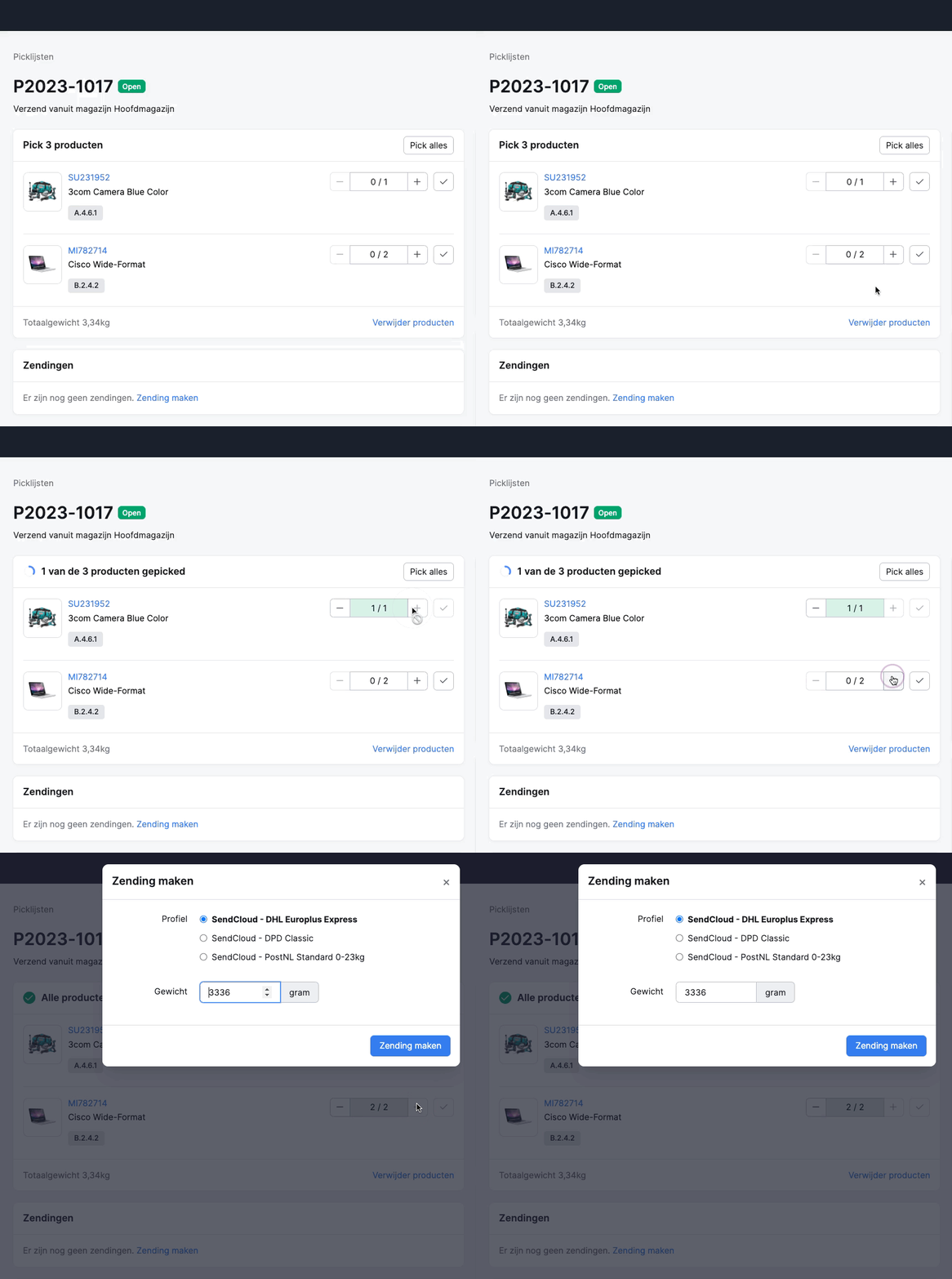
It doesn’t matter how many carriers you connect to Picqer. Whether you ship parcels, pallets or international orders, you can select the right carrier per order.
More control with fewer rules
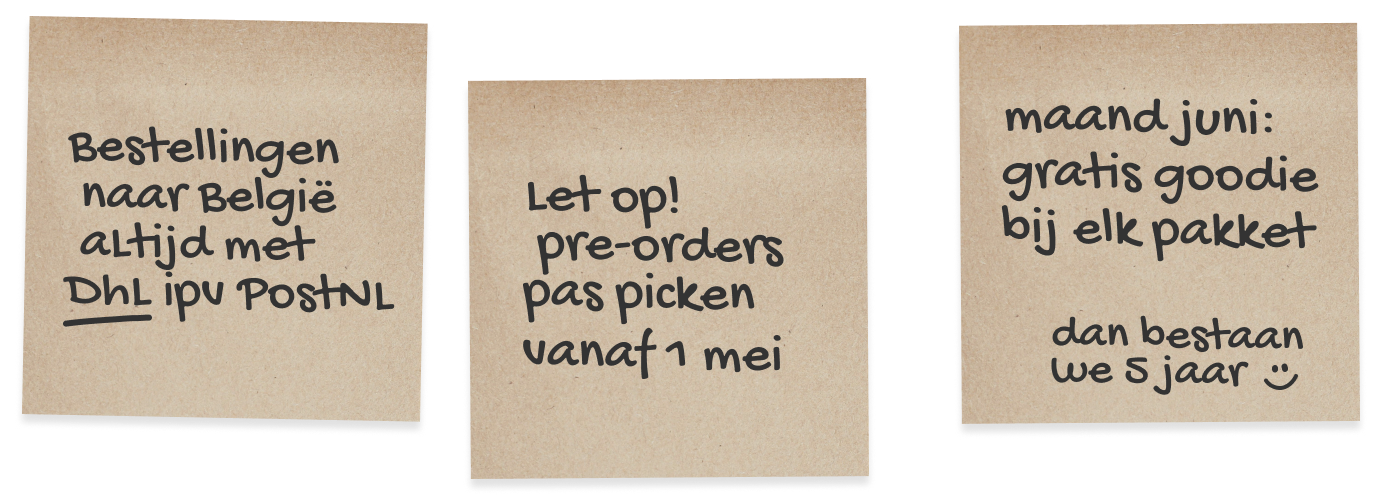
Those little “don’t forget” stickies may seem harmless, but managing exceptions in your workflow is not always easy. You need to communicate clearly with your team, and they need to remember to handle each exception correctly.
That’s why it’s best to allow as few exceptions as possible. The fewer ways there are to do something, the less risk there is of costly mistakes. But in reality, exceptions are often unavoidable, especially if you run a fulfillment business where each client may have different needs.
Picqer makes managing exceptions much easier. By setting up rules, you can automate actions in the software based on the conditions you define. When an order is processed or a picklist is created, Picqer automatically triggers the correct workflow. This allows your team to stay focused and keep their momentum.
Using rules in Picqer
Rules have been part of Picqer for a while. Based on user feedback, we’ve recently expanded what you can do with them. In this post, we’ll walk you through the improvements. Rules work the same for every Picqer user, but since fulfillment companies have a few extra options, the images show a fulfillment dashboard.
Selecting and editing multiple conditions
Below is an example of how to create a rule for shipping orders to Belgium with a different carrier. If you later expand to Germany and Denmark, you can easily adjust the rule with two clicks. For fulfillment companies, it's helpful that you can apply one rule to multiple clients. That means you don’t have to set up the same rule separately for each client, saving you a lot of configuration.
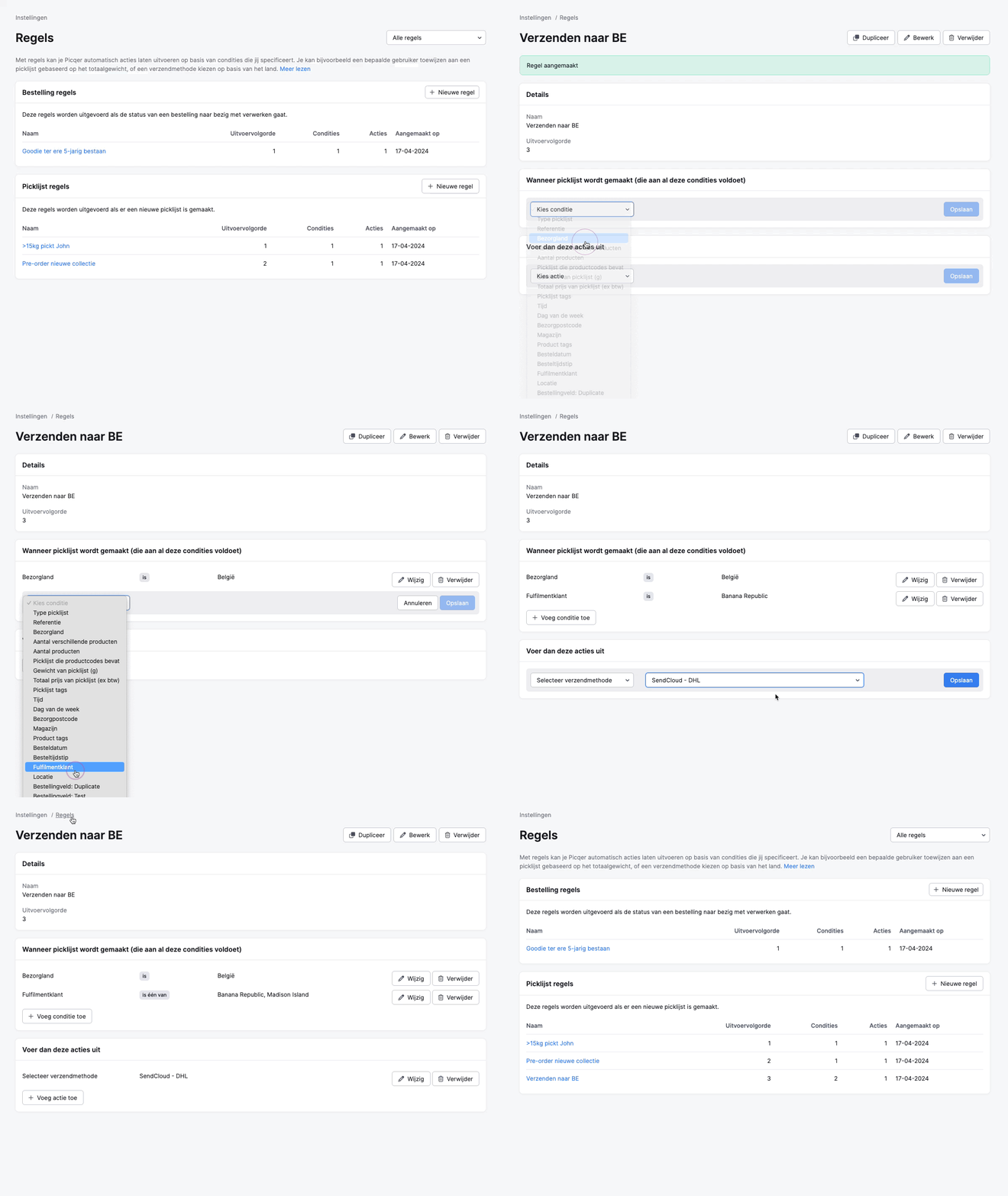
Filter the overview by fulfillment client
The example above also shows how to filter the rule overview by fulfillment client. This makes it much easier to see which rules are active for which client. Where the number of rules used to grow quickly, the overview is now more manageable with fewer rules.
Trigger actions at specific times
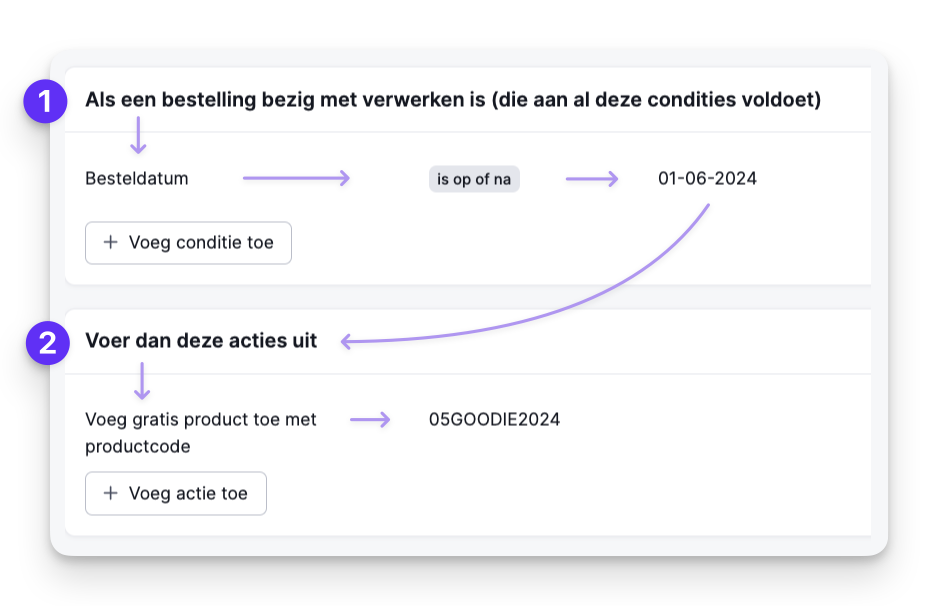
Rules let you control exactly when an action should happen. For example, you won’t forget to include a free goodie in every December order if you set up a rule for it. Starting June 1, Picqer can automatically add the free product to each picklist. Or if customers are pre-ordering products from a new collection that can only ship in May, a rule can snooze all picklists with the reference "pre-order" until May 1.
Automatically print or skip packing slips and picklists
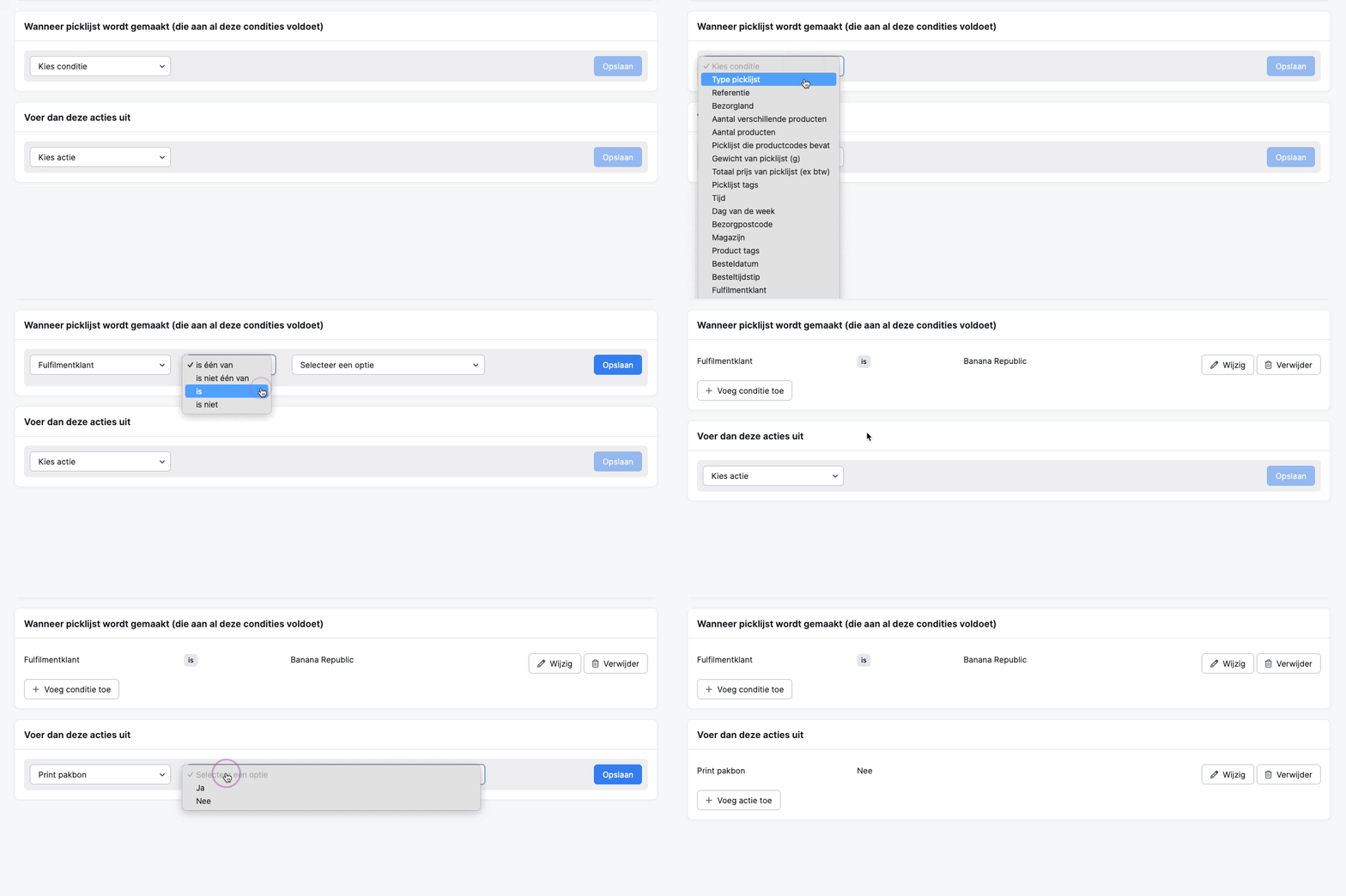
When setting up Picqer for the first time, you choose whether to print packing slips and picklists automatically. But you can override that default with a rule. For example, you can choose to only print packing slips for certain fulfillment clients, depending on their preferences. This helps reduce unnecessary printing.
Changelog
Changelog: Improvements to comments, rules and more
Over the past few weeks, we’ve made a number of improvements to give you more control over comments and rules. Read all about these and other updates in this changelog.
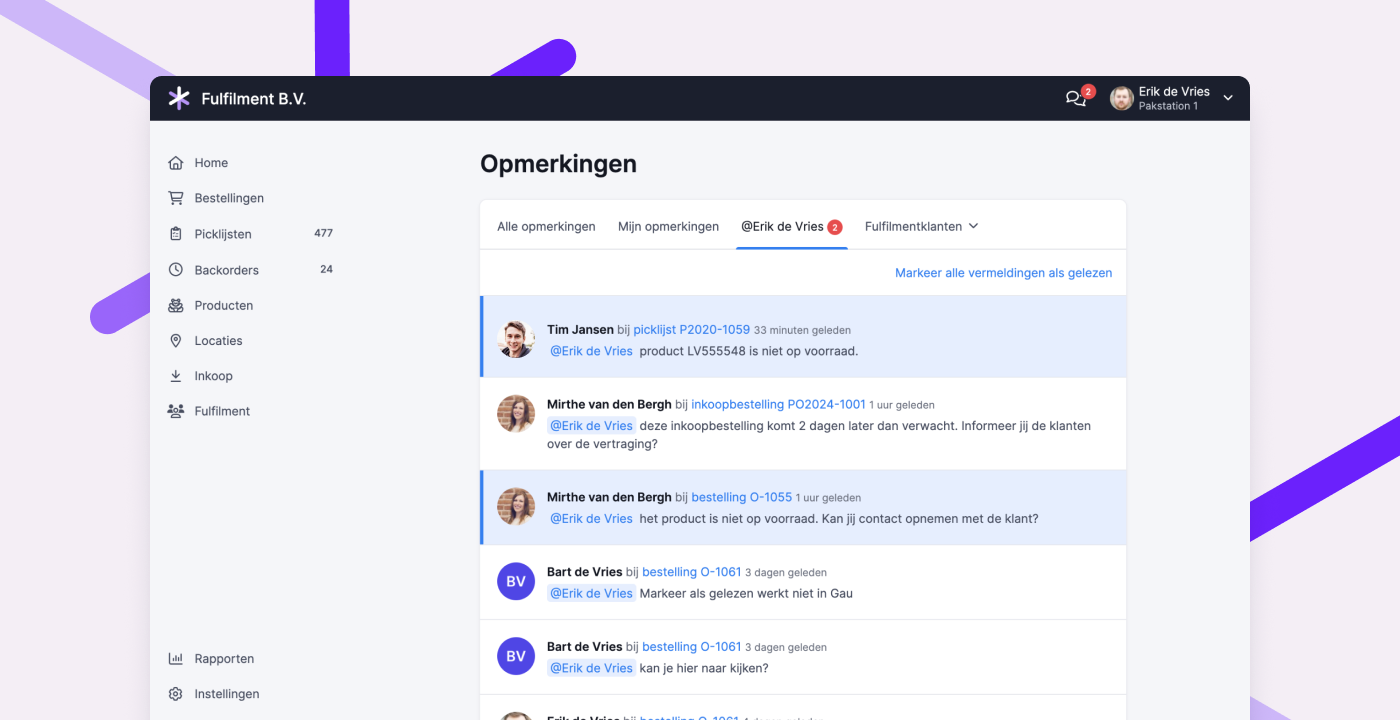
Improvements to comments
Comments help improve collaboration across your warehouse team. They’re useful for leaving notes so your future self and your coworkers know what was agreed upon or what happened and why. With an @mention, you can bring a message or question to the direct attention of a colleague or fulfillment client.
To make commenting even easier, we’ve introduced several improvements:
Better visibility for unread mentions
Previously, all mentions were marked as “read” as soon as you opened the mentions tab. We’ve changed that to help prevent unread mentions from being overlooked.
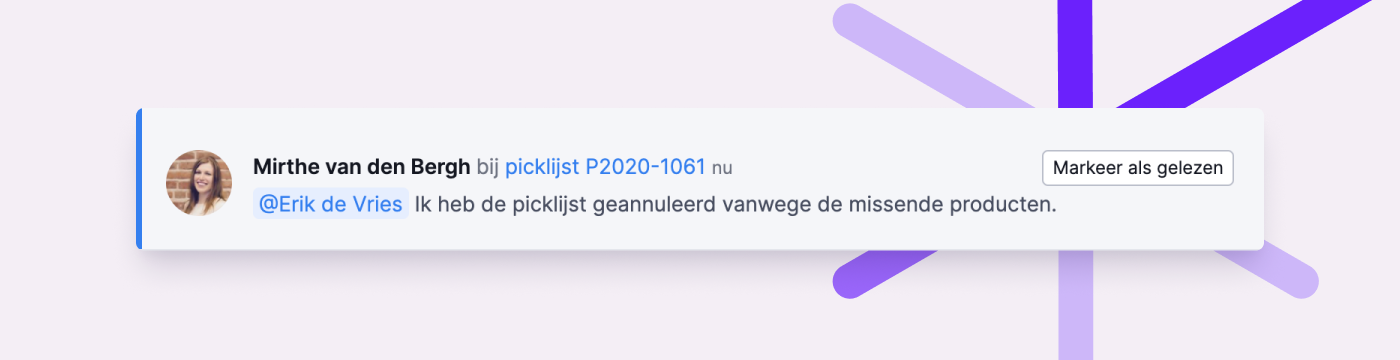
Now, mentions are only marked as “read” after you visit the page where the comment was posted. You can also manually mark mentions as read via the mentions tab by clicking “Mark as read” or “Mark all as read.” Unread mentions are highlighted in blue.
Easily mention colleagues in the app
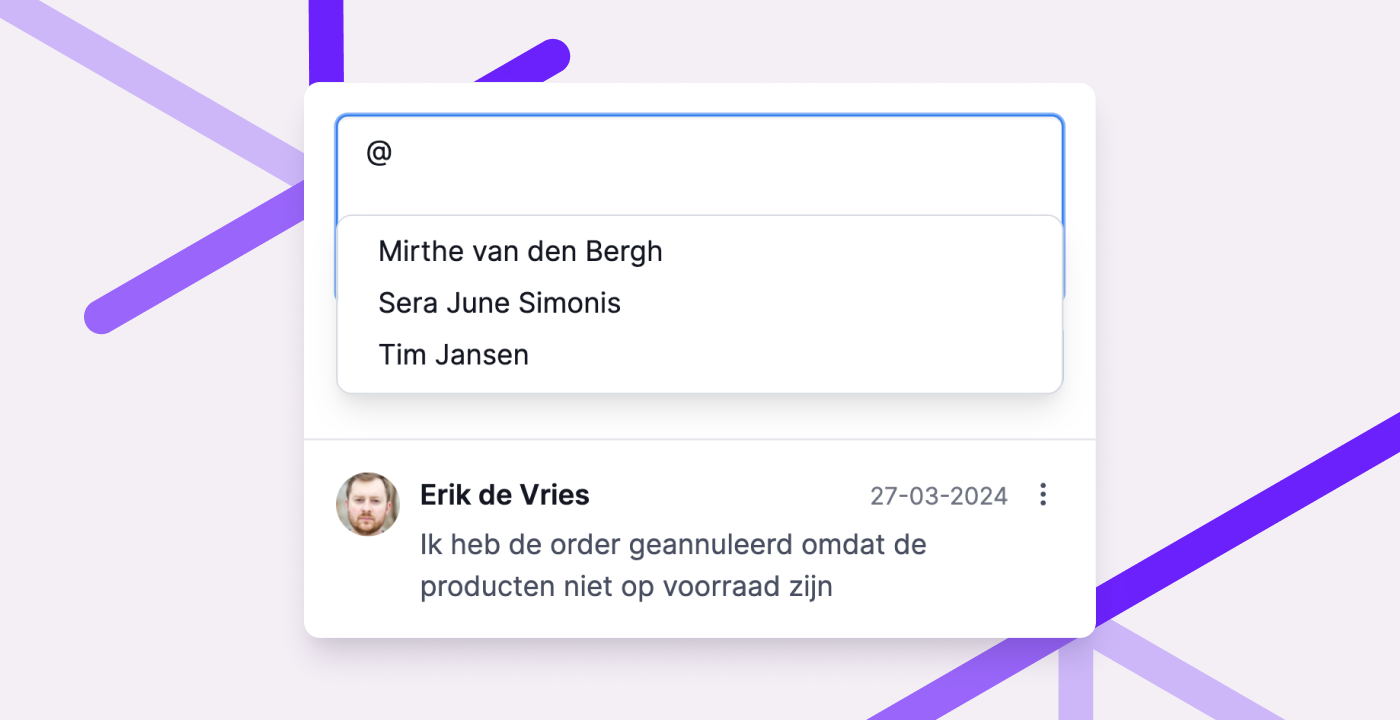
Are you picking in the app and need to leave a comment or ask a question? You can now mention someone in the app by typing @ and selecting from the list. There’s no need to type their full name.
Better visibility of comments for fulfillment clients
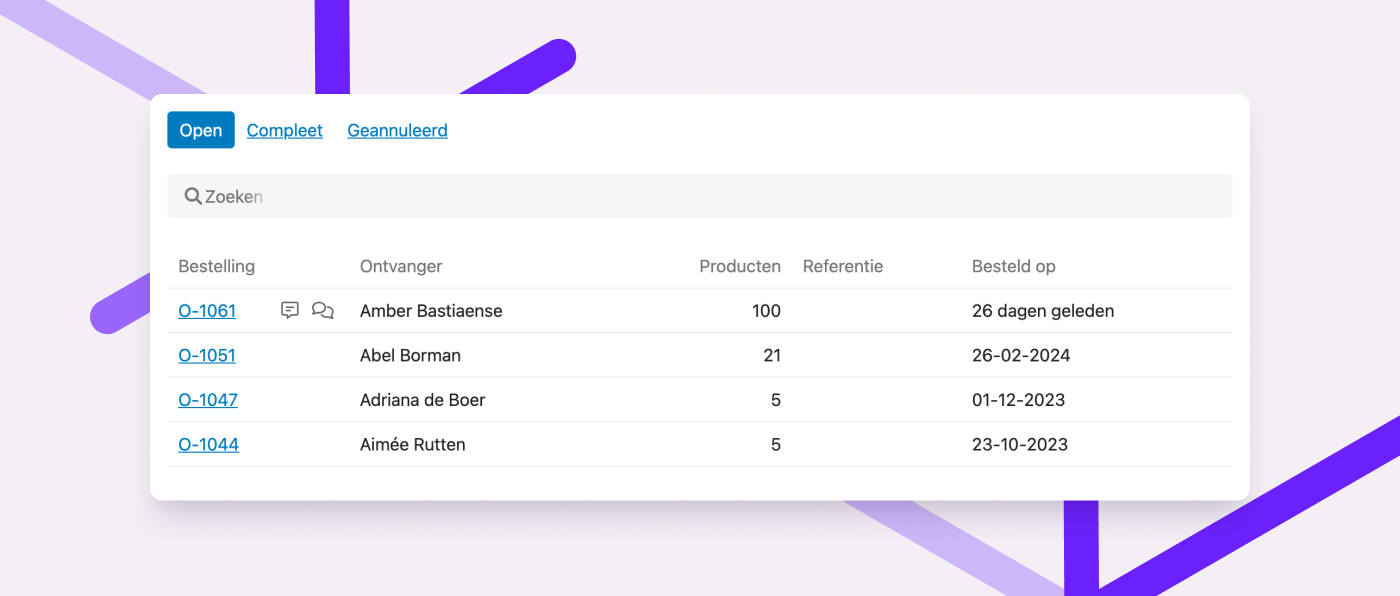
In product, order, purchase and return overviews in the fulfillment portal, clients now see an icon when comments are present. This includes customer comments on an order.
Since most fulfillment clients don’t use the portal all day, it may take a while for them to see and respond to a comment. That’s why clients can now receive email notifications for mentions.
Add an email address in the fulfillment client’s profile to enable this. Clients can also manage their notification preferences on the new settings page in the portal. Email notifications are enabled by default and can only be turned off by the client.
These updates help fulfillment clients stay informed and respond faster when needed.
Read more about commenting in the fulfillment portal in this help article.
Commenting on a fulfillment client page
You can now add internal notes to a fulfillment client's page. These comments are only visible to your team, not the client, and can help document agreements or special arrangements.
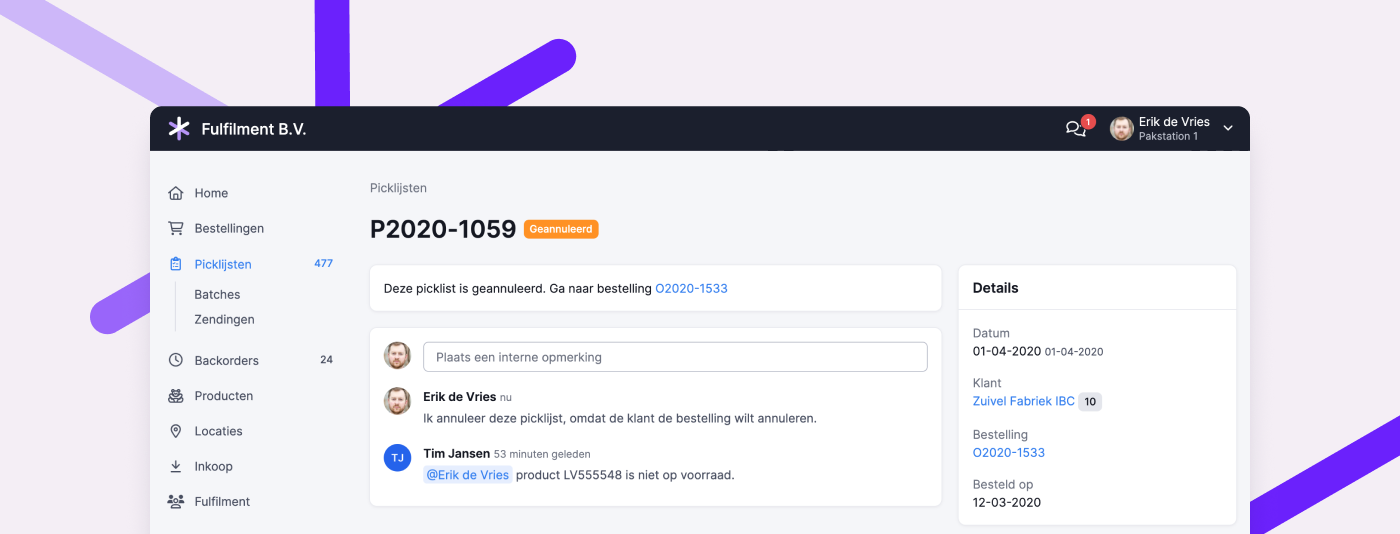
View comments on canceled picklists
If you’ve enabled the experimental feature “Updated picklist and batch pages,” you can now view comments on canceled picklists. This lets you review why a picklist was canceled, if it was explained in a comment.
Improvements to rules
Rules let you automate parts of your workflow, helping you handle exceptions more efficiently. We’ve added a few features to give you even more control.
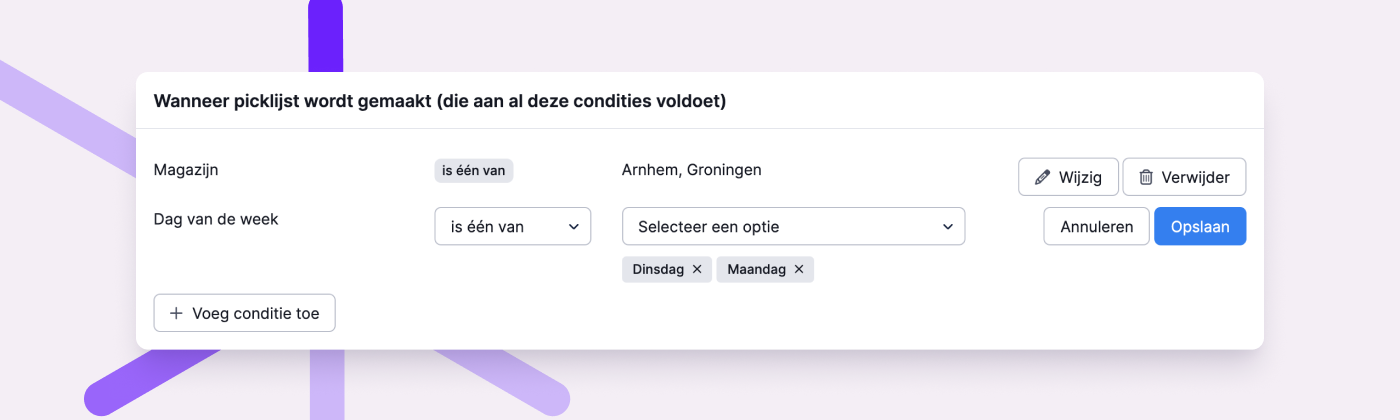
Use multiple warehouses and weekdays in rule conditions
For rules that apply to multiple warehouses or days of the week, you can now use the “is one of” or “is not one of” options. This allows you to select one or more warehouses or days, saving you from having to create separate rules for each.
View rule details from an order log
You could already see which rules had been triggered in the log of an order. Now, you can also click through to view the rule itself, inspect the details, and adjust the configuration or execution order if needed.
Longer condition fields
The maximum number of characters for a rule condition has been increased to 2048. This allows you to enter longer lists, such as product codes.
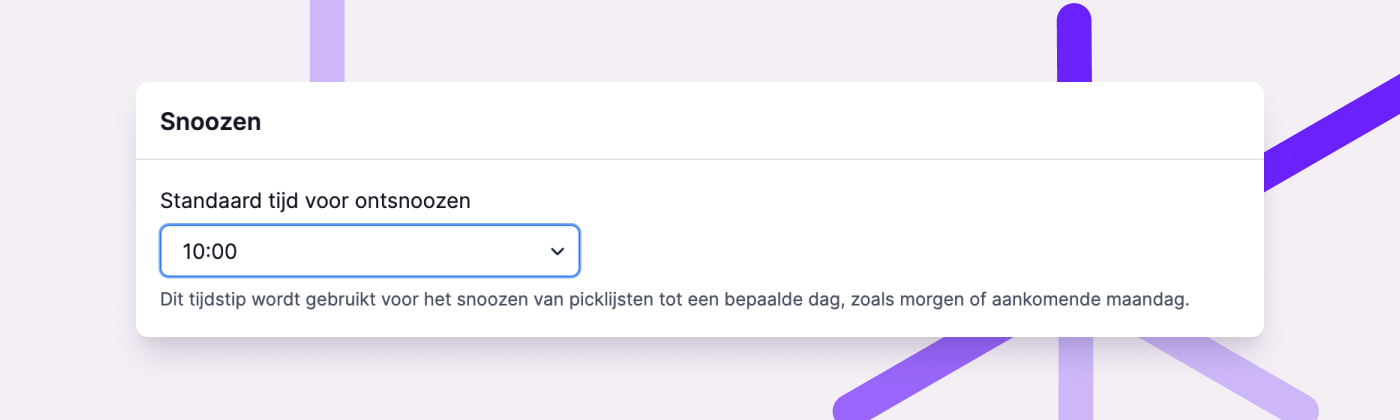
Set a default time for snoozed picklists
Previously, picklists snoozed manually or through certain rule actions were automatically set to resume at 7:00 a.m. You can now define your own default snooze time under General Settings, giving you more flexibility.
Other improvements
- When linking a picking container, you’ll now see the fulfillment client associated with the picklist. This helps you choose the correct container size.
- Customer comments from Shopware 6 are now imported with the order.
- If a picklist is canceled, any associated shipments will now be automatically canceled as well.
- If you’ve disabled automatic shipment creation in the app, it will no longer prompt you to create one.
- You can now see in the product log when and by whom a product was made active or inactive.
- Use the keyboard shortcut Ctrl + Enter (or Cmd + Enter on Mac) to submit a comment. It’s just a little quicker than clicking the “Post comment” button.
Looking for an older article? Browse the full blog archive with all articles.