

Purchase orders
In Picqer you can easily create purchase orders for your supplier. There are two ways to create a purchase order: manually or automatically via the purchase advice. Your purchase orders are processed directly in Picqer, so your stock is always up to date and you no longer need separate tools or manual overviews.
Create a purchase order
Go to new purchase order in Picqer and fill in the basic details: the supplier, the expected delivery date and the warehouse. You can always adjust these details later.
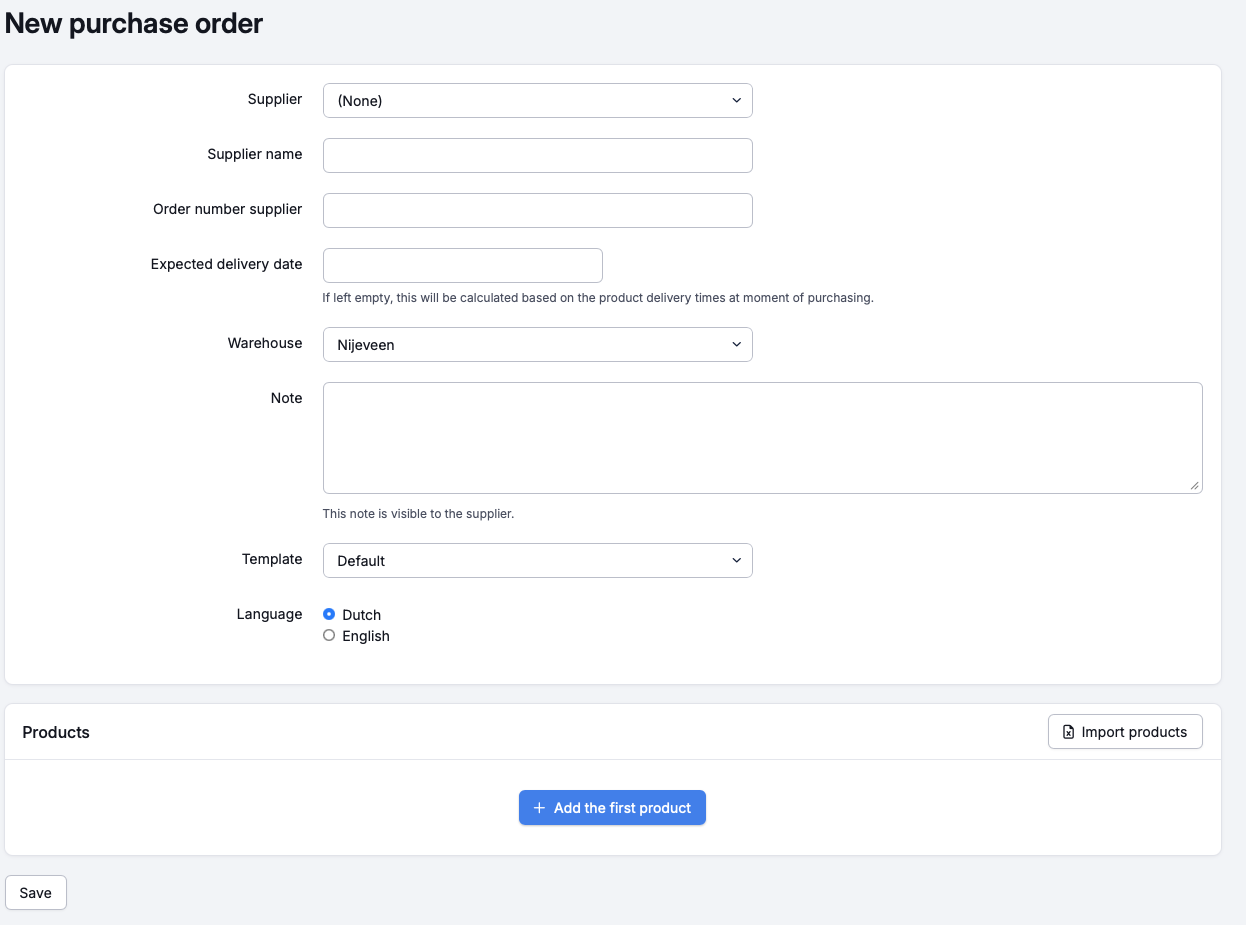
Adding products
Add products to your purchase order in two ways:
- Manually: click 'Add the first product' and enter the desired quantity. The total price is updated automatically.
- Import via Excel: upload an Excel file with at least the columns Product code and Quantity. The Price column is optional. This price applies to this specific purchase order only.
Expected delivery date per product
You can set an expected delivery date for the entire purchase order and/or per individual product. For a specific product, click the calendar icon 'Specify divergent delivery date' next to the product name.
If you only enter delivery dates at product level, the earliest product delivery date is automatically shown as the expected delivery date of the order. This way you can see at a glance whether an order will arrive on time.
Do you use the client portal? Then your customers see this delivery date with their backorders, in the 'Expected' column. Picqer shows the delivery date of the product, or the one from the purchase order if you didn't enter one per product. There is no separate date for the client portal.

Saving a purchase order
Once all products have been added, click 'Save'. The purchase order is saved as a 'concept'. When the purchase order is finalised, you can mark it as ordered and send it directly to your supplier.
Managing purchase orders
The Purchasing tab gives you an overview of all purchase orders, ordered products and the purchase advice. Purchase orders can be filtered by status: concept, purchased, received or cancelled.
After creating a purchase order, you can perform the following actions:
- Edit: update the supplier, warehouse or other settings of the order.
- Duplicate: create a new purchase order based on an existing one.
- Cancel: cancel an incorrect purchase order. Note: this cannot be undone.
- Export: export the purchase order to Excel or PDF, or create a put-away list for internal use.
- Print product labels: print product labels for all products in your purchase order.
Registering a receipt
Once you receive the products, register this in Picqer. Go to the relevant purchase order and click 'Register receipt' in the top right. You can register multiple receipts per purchase order, which is useful when products are delivered at different times.
Read more on the help page about registering a receipt.