5 practical tips for your packing table
The packing table is a key part of the process from order to shipment. It’s where you prepare and pack all your orders for delivery. Since you repeat these tasks many times throughout the day, a fast and neatly packed parcel leads to happy customers. To work efficiently, it’s essential that your packing table is clean, comfortable, and easy to work at. In this blog, we share 5 practical tips for setting up your packing table so every package goes out perfectly.
Tip 1: Start with a solid and modular system
Choose a packing table that fits your product range and needs. Make sure you can choose from a wide range of interchangeable parts, such as storage bins, shelves, and racks. This allows you to expand or adjust the table at any time as your assortment or workflow changes. It doesn’t really matter where you buy your packing table, as long as the materials are high quality. Your table will be used intensively. A strong tabletop that can withstand bumps and scratches will last you a long time.

Tip 2: Create a comfortable and ergonomic workspace
A wide variety of products will pass over your packing table—from large to small, from heavy to light. Adjust the table height to hip level so you can easily place products into packaging without straining. For larger items, you may want to lower the table slightly. If you have multiple packing tables, set them at different heights so each team member can work comfortably. If multiple people share the same table, consider using an adjustable-height table. Regularly check in with your team to ensure they’re working comfortably and make changes as needed.
Tip 3: Use reliable hardware and tools
During packing, you’ll use various devices and tools. To work quickly and accurately, these need to function well. Use barcode scanners that work in low light, sharp scissors, and high-quality tape to avoid frustration and mistakes.
Your packing table will also require specific hardware—for processing pick lists, printing packing slips, or scanning products. You can speed up your workflow by adding helpful tools in addition to the essentials. We divide the types of hardware used at the packing table into must haves and nice to haves:
Must haves
- Desktop computer – view and process your pick lists in real time
- A4 printer – print packing slips, pick lists, and customs documents (if needed). If you use paperless picking and don’t need customs forms, this may not be necessary
- A6 label printer – print shipping labels for packages
Nice to haves
- Barcode scanner – process orders faster than using a mouse
- Wired network – more stable than Wi-Fi for your computer and printer
- Product label printer – since product labels are smaller than shipping labels, having a separate printer saves you from switching label rolls
Want to know which scanners and printers we recommend? Check out our article on packing table hardware.
Tip 4: Keep packaging materials within reach
Keep shipping boxes, tape, and void fill close to the packing table so you can work efficiently without unnecessary steps. Only keep frequently used materials within arm’s reach. Use mounted shelves, bins, and baskets on the packing table for this. Store materials in the same spots at every table to ensure they’re easy to find. Items used less frequently should be stored further away so they don’t get in the way.

Tip 5: Keep the table tidy and clean
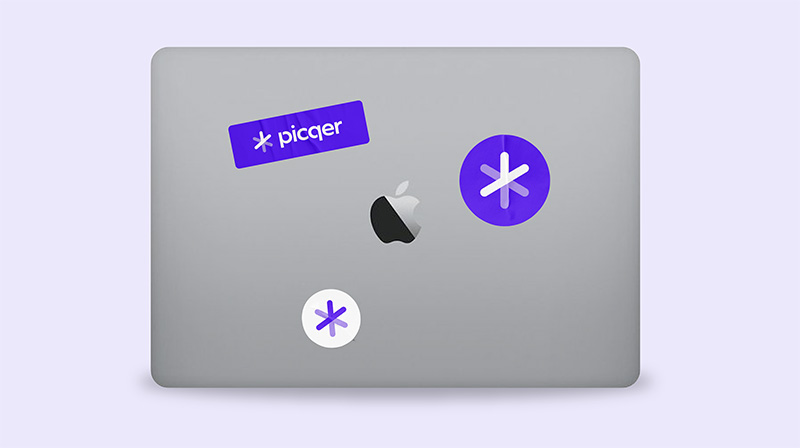
To work in an organized way, give every tool a fixed spot and label them—for example, with stickers. This prevents clutter and helps you avoid wasting time searching. To stay productive throughout the day, make it a habit to keep the table clean and tidy. Plan time for this by making cleanup part of the daily routine. Place a trash bin nearby so you can easily throw away packaging waste. A clean workspace ensures every parcel goes out in top shape.

Get the packing table stickers for free
Would you like to receive our packing table stickers for free? Request them here ⤵
Changelog: Manually printing shipping labels and other updates

Manually printing shipping labels
You can now manually print shipping labels directly from a picklist. This is useful when a label wasn’t printed automatically.
If the selected printer supports ZPL labels and a ZPL version of the label is available, a ZPL label will be printed.
Barcode on return PDF
We now show a barcode on the PDF of a return. This barcode can be scanned to open the corresponding return in Picqer—just like with barcodes on picklists.
Improvements to the new picklist page
- On the picklist page, we now display the total weight of all products.
- We've added an indicator when an order is being shipped from multiple warehouses.
- After closing a picklist, a button is now shown to go directly to the next open picklist in a batch.
Other improvements
- You can now disable product imports for any webshop if you don’t want Picqer to import product data.
- In the new main menu (experimental feature), the “Backorders” menu item is now always visible, along with the total number of backorders. The "Purchasing and replenishment strategy" menu item has been renamed to "Stock strategy" and the "Warehouses" page has been moved to the settings page.
- The current pick stock is now shown in the PDF version of the refill advice.
- URLs in order fields are now clickable from the picklist.
- We’ve added a new API endpoint that allows you to fetch only products with stock in a specific warehouse—ideal for stock syncs.
- We’ve added the webhook
picklists.changed. This triggers when the status, urgency, or assigned user of a picklist changes, or when a product is removed. - You can now transfer stock reserved for backorders to another warehouse.
- In the location history, you can now see who linked the location during a stock transfer in the app.
- In a standard batch in the app, you can now scan picking containers to check off product quantities.
- Searching for customers and shipments has been significantly sped up.
- You can now also search shipments by recipient name.
- VVB orders are now only snoozed if the customer explicitly selected a later delivery date.
- Sendcloud error messages now include detailed feedback from the carrier.
- The settings, purchasing tools, and reports pages now use Picqer’s updated design.
Optimize your warehouse layout with the ABC analysis
Warehouse staff in webshops walk a lot. If you want to work faster, you need to reduce the distance you walk. A smart warehouse layout can help with that. With an ABC layout, you organize your warehouse so that the products you pick most often are placed in the most accessible locations.
What is an ABC layout?
An ABC layout categorizes your products into three groups. Category A contains the small group of products you sell the most—your top sellers. Category B contains the larger group of products you sell moderately often. Category C contains the largest group of products you sell the least—the long tail.
In an ABC layout, you place A-products as close to the packing table as possible. This way, you reduce the amount of walking. B-products are placed slightly further away. C-products go in the locations that require the most walking. Spread A-products across multiple aisles around the packing table so pickers don’t get in each other’s way.

How do you determine your ABC products?
An ABC analysis helps you determine which products belong in each category. It divides your assortment into three groups based on sales volume. You can use different metrics for this. To optimize your warehouse layout, look at how often products appear in picklists instead of total sales or revenue. That tells you how often you need to walk to a product’s location and how much time you can save by placing it closer.
In Picqer, you can do this using the ABC analysis. The analysis automatically assigns each product an A, B, or C label. Based on this, you can place your products in the most efficient location in the warehouse.
How many products fall into each category depends on several factors, such as the size of your warehouse, the dimensions of your products and bins, and the size of your assortment. In Picqer, we use the following breakdown:
- A-products: the top 5% most picked products
- B-products: the next 15% after the A-products
- C-products: the remaining 80%, which are picked the least
Product sales volumes can fluctuate throughout the year. Product life cycles, seasonal trends, and other changes all affect your data. That’s why it’s important to run your ABC analysis regularly. Picqer runs the analysis automatically every week, looking back over the past 28 days.
The 7 principles of a professional warehouse
At Picqer, we believe the best warehouses are run by people who care about their business and have a genuine interest in their products. We also believe that a professional warehouse follows a few key principles. These are the 7 principles of a professional warehouse according to Picqer.
1. Warehouse work should be enjoyable
Automation helps make your warehouse more efficient, but warehouse work is still people work. Divide tasks between your team and your systems. Computers are better at remembering where products are stored or calculating how much stock to order. Let people focus on what they’re great at—carefully packing and shipping every order.
You can reduce decision-making with automation, which speeds up the process and reduces errors. That makes the work calmer and more enjoyable. Ask your team for regular feedback—how does it work for them in practice? This helps you implement automation where it makes the biggest impact.
2. Do it for your customer
Your warehouse is like the kitchen in a restaurant. Customers don’t see what happens after placing an order, but they do see the outcome—the package they receive. The better and faster that delivery is, the better their experience. And your warehouse process plays the biggest role in that moment.
In a professional warehouse, everything is done with the customer in mind. Every change is made with their experience in focus. Customers notice the care you put into packaging, how the box is filled, and how clearly you communicate. Every detail adds to the unboxing experience.
3. Clear processes create independence
A professional warehouse runs on clear processes. These processes show exactly what needs to be done—nothing more, nothing less. They leave room for personal judgement and empower people to work independently.
Everyone can start and finish their own tasks without depending on someone else. That means you need fewer managers, and the warehouse can adapt more quickly when things change. Independence grows when processes are owned from start to finish. Assign full responsibility for a task to one person instead of splitting it into fragments.
Software helps you design clear processes and makes it easier to follow them. If multiple people are involved in a process, the software shows exactly what steps have already been completed, so anyone can pick up where someone else left off.
4. Eliminate to go faster
Speed is not a goal, it’s a result. You don’t make a warehouse faster by walking faster. You make it faster by walking less and making fewer mistakes. You do this by eliminating unnecessary steps.
Unnecessary things can slow you down everywhere: excess stock, unused box sizes, or process steps you skip 90% of the time. Eliminate anything that feels like it's in the way or no longer adds value.
5. Only real-time information counts
Things move quickly in a warehouse, so only real-time information is reliable. Make sure all your information is digital and updated in real time. Connect all your systems, like your warehouse software and your webshop. Always track the actual status. For example, only mark an order as “shipped” when it’s truly been shipped.
Avoid printing information whenever possible. Anything on paper can be outdated the moment it’s printed. Label storage locations only with static details like location numbers, not product information that might change.
6. Progress motivates
There’s always work to do in a warehouse, which can make it hard to feel progress. Show your team the progress: how many orders have been shipped today and the quality of that work. You can use a large screen with real-time stats to make everyone’s contribution visible.
Be proud of what the team achieves together, but avoid turning it into a competition. Show the team's collective progress, not individual results. That encourages people to help each other and improve the warehouse as a whole.
7. Keep improving
A warehouse is always evolving. Your product range changes, order volumes shift, and customers expect more. To stay flexible, you need to keep training your improvement muscle. Make changes quickly and experiment often. Focus on getting better every day, instead of trying to perfect something once and for all. Because that “perfect” solution may already be outdated tomorrow.
Improvement ideas can come from anywhere in your warehouse. A good suggestion or a small frustration can spark change. Plan regular moments to gather input, so you avoid slowing things down during busy shipping times.
What defines a professional warehouse?
A professional warehouse is efficient, flexible, and makes very few mistakes. It’s also clean and well-organized. You can’t ship beautiful packages from a messy warehouse. But more than that, a great warehouse just feels right. Even during busy periods, it feels calm and under control. When everyone knows what they’re doing and everything is in its place, you feel the difference.
If something doesn’t feel right in your warehouse, that’s a signal that something needs to improve. Find out what’s causing the stress, clutter, or confusion, and fix it. It doesn’t have to be complicated. With these principles in mind, you can make your warehouse feel a little better every single day.
Changelog: Automatically snoozing Bol.com VVB orders and other updates
Shipping via Bol.com is becoming more popular among our users. Over the past weeks, we’ve made several of the most requested improvements.

Automatic snoozing for VVB
Some Shipping via Bol.com orders must be shipped later, for example, when the customer has selected a specific delivery date. If you use multiple carriers, it can be difficult to configure this correctly with Rules. Now that we receive the allowed shipping date from Bol.com, we automatically snooze picklists until the earliest allowed shipping moment.
For example, orders shipped with Budbee will be snoozed until 12:00 PM the day before shipment. PostNL and DHL orders will be unsnoozed at midnight on the day they need to be shipped.
You no longer need to set up Rules for this. In fact, we recommend removing any Rules you have set up for VVB shipments.
Importing products from Bol.com
Picqer now imports new products from Bol.com, just like we do for other webshop integrations. When you connect a new Bol.com account, all your offers will be imported as products. We’ll also import products if they appear in an order but don’t yet exist in Picqer.

For existing Bol.com integrations, product import is disabled by default. If you want to use this feature, go to the webshop settings and enable product import.
Other improvements to the Bol.com integration
- New orders are now imported every 5 minutes instead of every 15 minutes.
- Every Shipping via Bol.com order is tagged with the carrier name. This lets you create Rules or batch picklists per carrier.
- If your stock exceeds 999 units, the sync will now continue correctly once it drops back below 999.
- When creating a shipment for a VVB order, a shipping profile is now always preselected.
Mobile app
Wherever you can modify or move stock in the mobile app, the experience is now consistent. You can scan a location directly and link new locations from anywhere. We've also significantly improved the speed of moving stock within receipts, so the correct quantity is moved even if you're working quickly.

Other improvements
- Support for additional PostNL services within the EU. In addition to "Track & Trace Insured Plus," we now support the more affordable "Track & Trace Insured" and "Track & Trace."
- The webshop settings pages have been improved. Each setting includes more explanation, and advanced settings are hidden by default so you can set up new shops more quickly.
- On the new picklist page, the product you scan is now highlighted.
- Line breaks in order fields are now preserved on the order page.
- Fixed a bug where not all products were deactivated when a fulfilment customer was deactivated.
- The API now returns stock details for all active warehouses, even if no stock has ever been added.