

Setting up traceability
With traceability you record a lot for a product's stock: a lot number, an expiration date, or both. This article shows you how to turn it on, what you set per product and when you fill in the lot details.
Want to know what traceability entails first? Read the guide on lot numbers and expiration dates.
On this page
Turning traceability on
Go to Settings > Traceability. Switch the toggle on to enable traceability for your whole account.
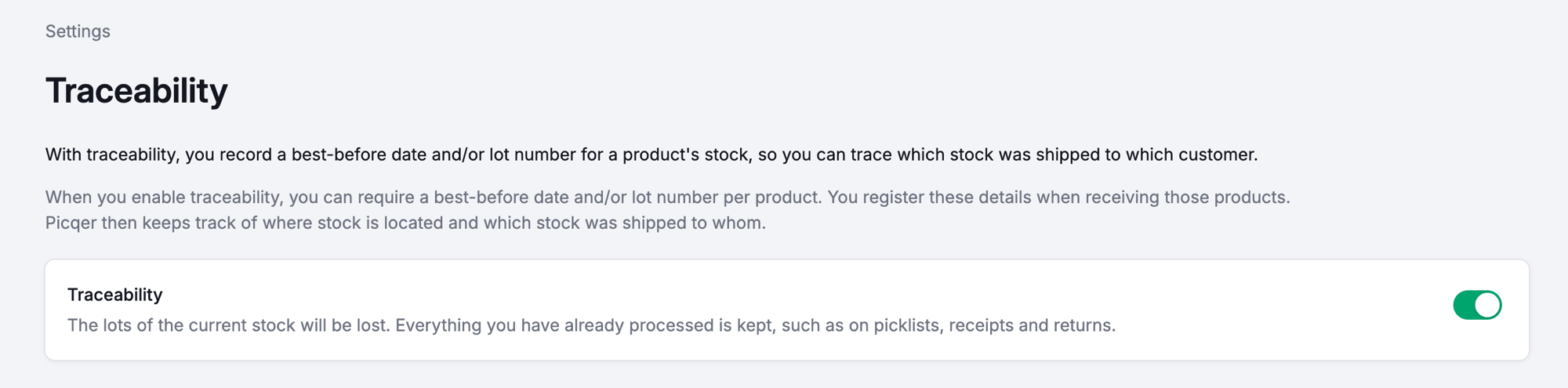
While traceability is off, nothing changes about the way you work today. Only once you turn it on can you choose per product what you track.
If you turn traceability off again later, we'll ask you to confirm. The lot details on your current stock then disappear from your stock locations. Everything you have already processed is kept: the lot details on your picklists and receipts stay in place.
Making products traceable
Traceability is now on for your account, but not yet for your products. Per product you decide whether you track a lot number, an expiration date, or both. You can do this one product at a time or for several products at once.
A traceable product always needs a real stock location, because Picqer cannot keep a lot on 'No specific location'. Count on one location for every lot you hold at the same time: the same lot can sit on several locations, but two different lots never share a location.
Per product
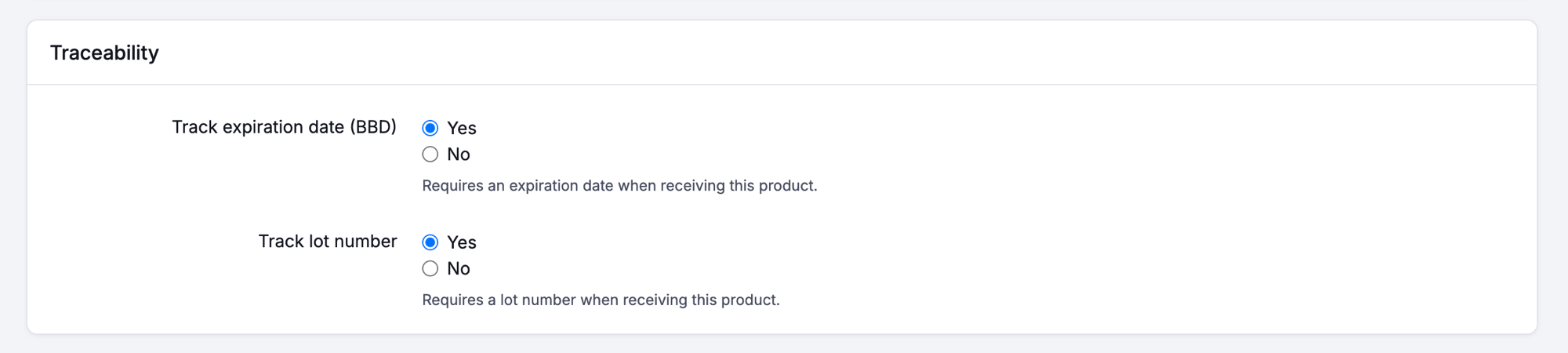
Edit a product and look for the 'Traceability' heading. It holds two choices, each set to 'Yes' or 'No':
- Track expiration date (BBD): requires an expiration date when receiving this product.
- Track lot number: requires a lot number when receiving this product.
Set at least one of them to 'Yes' and the product becomes traceable. You only see the heading on products of the type 'Normal'. Compositions and products with unlimited stock cannot hold a lot.
Set either choice back to 'No' and we ask you to confirm. The matching lot details then disappear from that product's stock locations.
Several products
If a whole range of products needs to become traceable, turn those choices on in bulk through the Excel import for products. Once traceability is on, you can map your columns to 'Track lot numbers' and 'Track expiration dates'. Use the value 'TRUE' in those columns for every product you make traceable, and 'FALSE' for the products you do not trace. That makes a whole list of products traceable in a single import. You cannot set traceable products back to 'FALSE' in bulk. You do that per product.
Filling in lot details for existing stock
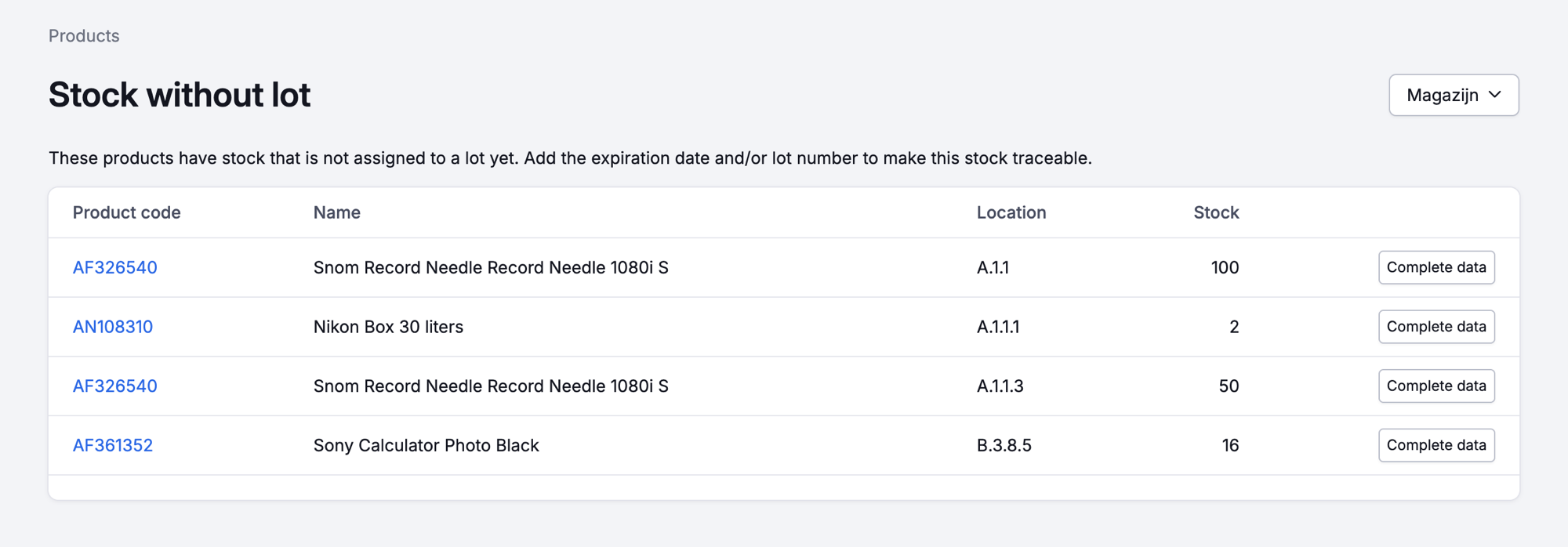
The stock already sitting in your warehouse when you turn traceability on has no lot details yet. Go to Products > Tools > Stock without lot. It shows you in one overview which traceable products have stock with incomplete lot details, so you can complete it per location without looking up every product separately.
For larger numbers, enter the lot details in bulk through the import for stock per location. Once traceability is on, that import gives you two extra columns you can fill in: 'Lot number' and 'Expiration date'. That way you prepare a whole list in one go. With traceability off, these columns do not appear.
Is something wrong with the lot on a location later on? The product page shows you which lot sits on each location. Click the three dots behind that location and choose 'Edit lot'.
Filling in lot details when stock arrives
You fill in the lot at the moment stock enters your warehouse. After that there is nothing more to enter, because the lot details come along when you move, write off and pick. There are three moments where you fill it in.
Receipt
This is usually where it starts. When you receive a purchase, traceable products require a lot number and/or expiration date. If you receive a product onto a location that already holds a different lot, you get an error and pick another location to receive it on.
Return
Process a return and choose 'Add to stock', and you fill in the lot details there too before the stock goes back on the shelf.
Manual stock change
When you book stock onto an empty location, you fill in the lot details right away. That way all your stock is linked to a lot from the start, and there is nothing to add afterwards.
With a quick stock change, filling in the lot details is not mandatory.
Moving stock
When you move stock between locations in the same warehouse, Picqer checks the target location as you go. If it already holds a different lot, you get a message telling you the stock of that lot cannot be moved there, so you can pick another location.
To move stock to another warehouse, create a movement and leave 'Execute in steps' ticked. Each movement handles one lot per product at a time. When you put stock away, Picqer checks that the location is either empty or holds the same lot, so lots never get mixed up.
Picking and shipping
For products whose expiration dates you track, Picqer uses FEFO (first expiring, first out) when suggesting pick locations. Stock without an expiration date comes first. Stock with the earliest expiration date comes next, including stock that has already expired. Preferred locations and your bulk location setting take precedence over this date order.
While picking, Picqer records which lot you hand over. This happens at the moment you pick the product, and what gets recorded then does not change afterwards. If a different lot ends up on that location later, the picklist keeps showing which lot you sent that customer.
The lot number and expiration date appear on the picklist and on the packinglist. Picqer keeps a record per picklist of what went out, even once that stock has long left your warehouse.
One thing to keep in mind:
- Cancelling a picklist: the stock of traceable products returns to 'No specific location'. Move that stock back to the right location yourself, so the lot matches the location again.
Stock count
While counting stock, Picqer only asks for lot details when you count stock on a location where nothing has been filled in yet. That keeps a count a count instead of turning it into an audit of all your lots.
Reports
Two reports give you back what you recorded. One tells you where a lot came from and which customers received it. The other helps you keep an eye on your expiration dates.
Historical traceability data
This report shows which lots of a product you received and shipped. Open the product page, click the three dots under 'Stock' and choose 'Historical traceability data'. You get two overviews:
- Received lots: for each receipt, the amount, the lot that came in and the supplier.
- Delivered lots: for each order, the amount, the lot you shipped and the customer who received it.
By default you see the last 30 days. Use 'Date period' to pick a different period of up to 12 months. To look up a single lot, use 'Lot number' or 'Expiration date period'. You only see the fields that match what you track for the product.
Has a supplier recalled a lot? Enter the lot number. 'Current stock' shows which locations still hold that lot, and 'Delivered lots' shows which customers received it. Click 'Export all results' to export the results to Excel.
Products with upcoming expiration date
This report lists the stock that has expired or will expire soon. Go to Reports and open 'Products with upcoming expiration date'.
For each location you see the product, the lot number, the expiration date and the current stock, with the earliest date at the top. Dates that have already passed are shown in red. By default the report looks 30 days ahead. Use 'Expiration date up to and including' to choose your own end date.