

Split picklist
Splitting moves some of the products on a picklist to a new picklist, so you can handle them separately. For example when the order weighs more than your carrier accepts in one parcel, or when large products are packed at a different packing table.
On this page
Split a picklist
- Open the picklist and click 'More'.
- Choose 'Split picklist'.
- For each product, enter how many units go to the new picklist in the 'To new picklist' column.
- Click 'Split picklist'.
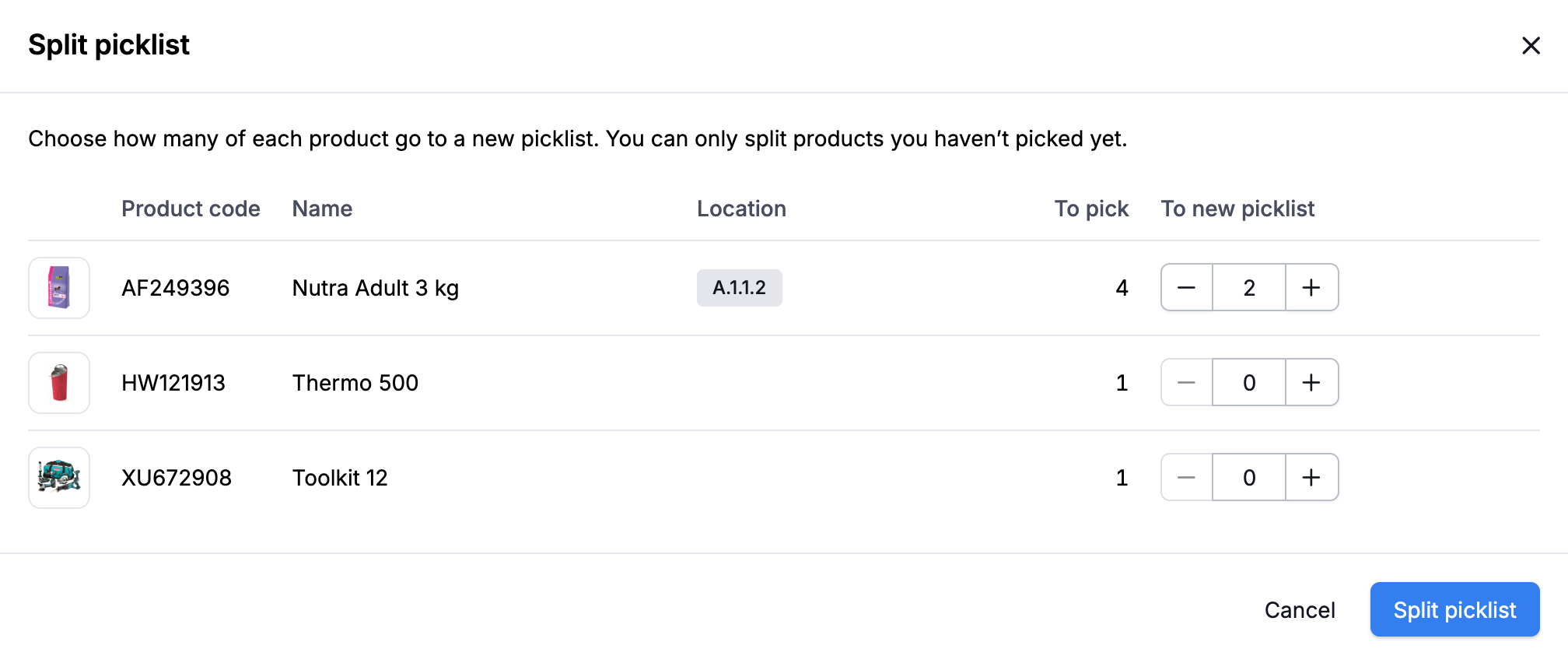
You're then taken straight to the new picklist. Need to handle another part separately? Just split again.
You can split a picklist with the status open, paused or snoozed, as long as it isn't part of a batch. Only products that haven't been picked yet can be split, and at least one product stays on the original picklist. A composition is split as a whole, as long as none of its parts have been picked.
You need the 'Cancel picklists' user right to do this.
The new picklist
The new picklist belongs to the same order and only contains the products you split off. It always gets the status open. Picqer runs your rules on it, just like on any new picklist. If the original picklist is urgent or assigned to a user, the new picklist is too.
The reserved stock moves to the new picklist, so the order never goes into backorder along the way. The log of each picklist links to the other one.
Picqer doesn't run the rules again on the original picklist. Check for yourself whether things like the shipping profile still fit.
Remove products from a picklist
Don't want to handle the products separately, but take them off the picklist instead? For example because you want to write off the stock. Then you remove them, and they become backorders.
- Open the picklist and click 'More'.
- Choose 'Remove products'.
- For each product, enter how many units to remove in the 'Remove from picklist' column.
- Click 'Remove products'.
This also only works for products that haven't been picked yet. To remove part of a composition, remove the whole composition. Picqer then handles the backorders like any others: read more about turning backorders into picklists.
Split through the API
Want to split picklists automatically based on your own criteria, such as weight or tags? You can do that through the API: read more about splitting a picklist in the API documentation. Spreading an order across picklists based on stock or warehouse is something Picqer already does automatically with AutoSplit.