

User rights
User rights let you decide per user what they can do in Picqer. That way nobody changes things in your warehouse without permission. Administrators always have access to everything in Picqer, including all settings.
On this page
Rights per user
Log in as an administrator, or as a user with the 'Manage users' right.
Go to Settings > Users.
Pick the user whose rights you want to change and click 'Edit'.
Scroll down to 'User rights' and tick the rights you want to give. You only see the rights you have yourself.
In the top right corner you'll find a button to select or deselect all rights at once.
Click 'Save'.
Want to give someone the same rights as an existing user? Copy that user.
Rights of multiple users
Under Settings > Rights overview you see every active user and API key with their rights, so you can check from time to time that nobody has more rights than they need. Only administrators can open the rights overview.
Want to change the rights of several users at once? Click 'Edit rights' in the top right corner. You'll see all users and their rights in one table. Here you can give a right to all users at once, or take it away from everyone. You can also make someone an administrator. Every change is recorded in the audit log.
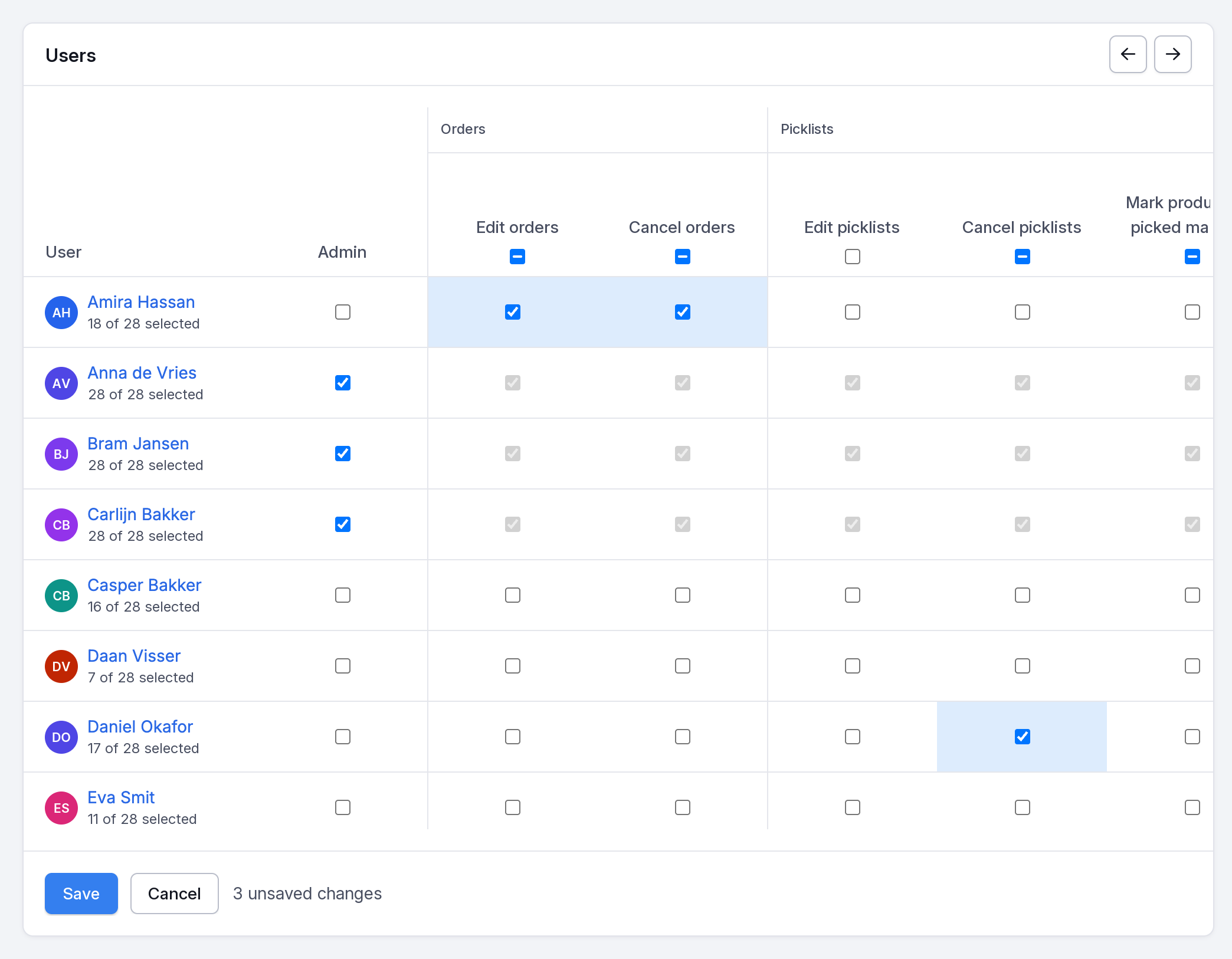
All rights
Below you can read what each right lets a user do.
Orders
- Edit orders: create and edit orders. Editing covers the products, the delivery address and the tags.
- Cancel orders: cancel orders.
Picklists
- Edit picklists: change the delivery address on a picklist.
- Cancel picklists: remove products from a picklist or cancel the picklist. The products then become backorders. This right also lets the user split a picklist.
- Mark products as picked manually: enter the picked amount by hand while picking. Without this right the user scans every product.
- Mark all products as picked manually: mark all products on the picklist as picked at once with 'Pick all'.
Backorders
- Process backorders manually: process backorders.
Purchase orders
- View purchase orders: view purchase orders. Without this right the user does not see 'Purchasing' in the menu.
- Edit purchase orders: create and edit purchase orders: the expected delivery date, the remarks and the products.
- Mark purchase orders as purchased: mark a purchase order as purchased. Without this right the user can still register receipts, but cannot edit purchase orders that are already purchased.
Receipts
- Add products not on the purchase order to receipts: add products to a purchase order through a receipt, or create a new purchase order that way. Without this right the user only receives products that were purchased.
Products
- Edit products: create and edit products: details, parts, images and files. Also needed to import products.
- Change stock manually: change the stock of a product by hand, including a quick stock change.
- Move stock manually: move stock of a product to another location.
- View costs: see the cost price of products, in Picqer, in exports and through the API. The cost price remains visible in some reports.
Fulfilment customers
- Edit fulfilment customers: edit, deactivate and delete a fulfilment customer. Only in the fulfilment version of Picqer.
Locations
- Edit locations: create and edit locations.
- Link locations to products: link a location to a product, on the product page and while registering a receipt.
Warehouses
- Edit warehouses: change the name, priority and settings of a warehouse.
- View stock value: see the stock value of a warehouse: the total cost price of all products in it.
Reports
- View reports: view and export all reports.
Exports/imports
- Export and import: export and import data through Excel. Importing products also requires 'Edit products'.
Settings
Only administrators can reach all settings. These rights give another user access to part of them. A user with none of these rights does not see 'Settings' in the menu. Parts like company details, your subscription and API keys stay with administrators.
- Manage rules: create, edit and delete rules.
- Manage printers: add, edit and delete printers and packing stations.
- Manage users: create, edit and deactivate other users, and change their rights. They can only hand out rights they have themselves. Editing an administrator, making someone an administrator and changing your own rights is reserved for administrators.
- Manage integrations: connect and configure stores, shipping providers and invoice integrations.
- Manage templates: create and edit templates and sender domains.
- Manage extension: manage everything under 'Extension': location types, picking containers, returns, product fields, customer fields, order fields, tags and packagings.