
New: Pausing
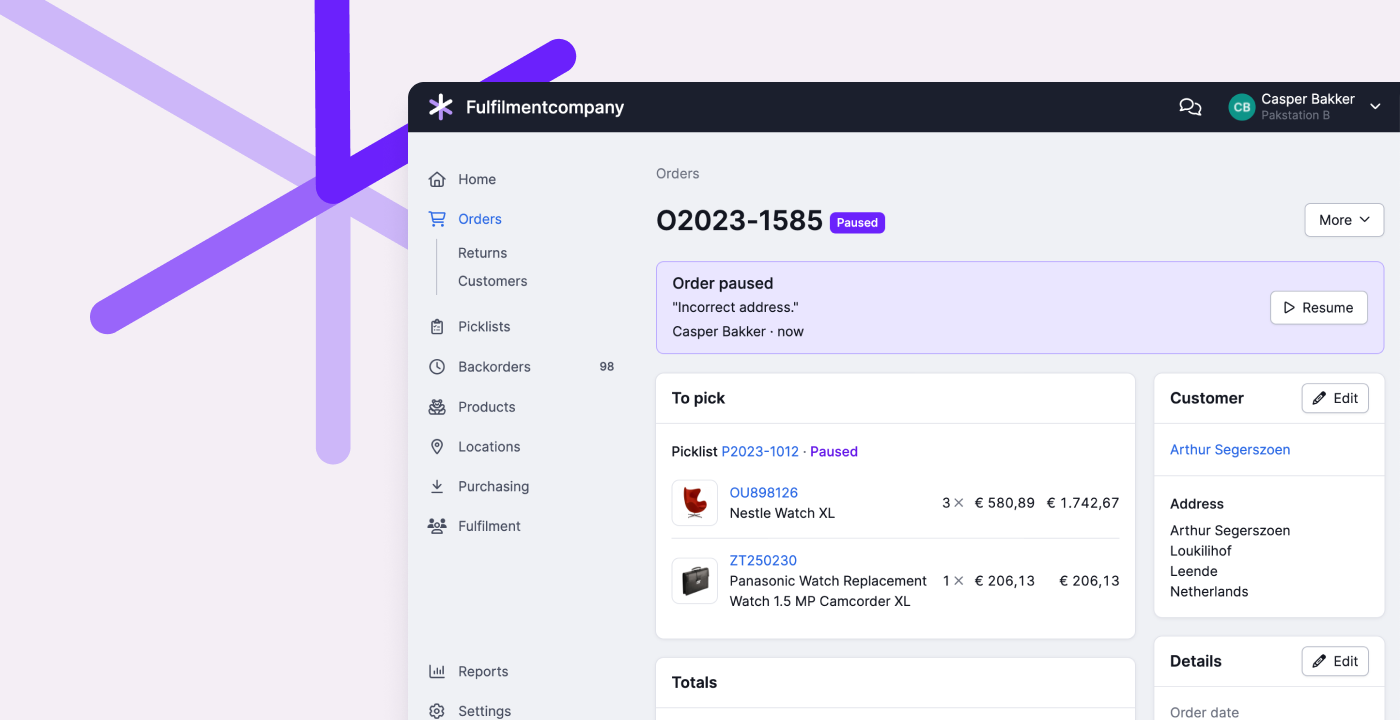
You’ve probably encountered this before: you can’t properly process an order. The house number is missing, the product is nowhere to be found, or the customer wants to make a last-minute change. Often, you have to rely on a colleague to solve the issue, but in the meantime, you want to remove the order or picklist from the process.
That’s why we’re introducing Pausing. It’s like snoozing, but for dealing with problems. Can’t proceed with an order or picklist? Then you pause it. We take the order out of your normal workflow until you or your colleague has solved the problem.
Paused orders and picklists are listed separately, along with the reason. This makes it clear to everyone what still needs to be processed and what requires extra attention.
Snoozing remains available for picklists that don’t have any issues but need to be sent later.
Pausing provides more clarity and peace of mind by giving problem cases a clear place in the process. This way, everyone can trust that they won’t be forgotten.
Want to know more about Pausing? You can read all about it in our help center.
Changelog
Changelog: Status of webshop links and cancellations from Bol.com
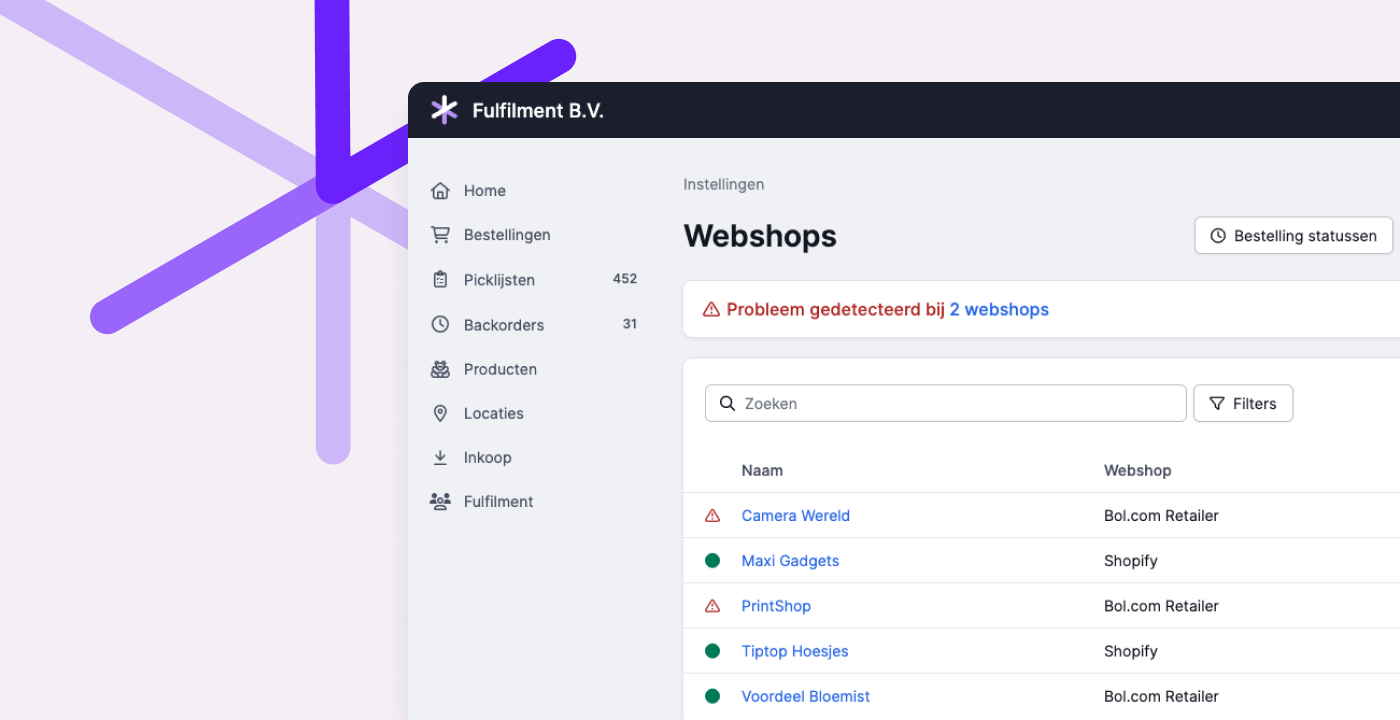
Always insight into the status of your webshops
The proper functioning of your webshops is crucial. If new orders are not processed, work piles up, and customers become dissatisfied. That's why we automatically monitor all your webshops and send a notification in Picqer to administrators whenever an issue is detected.
If you manage many webshops or don't work in Picqer all the time, it can be challenging to keep track of everything. Therefore, we have improved the insight into the status of your webshops in two ways:
- In the webshop overview, you can now see at a glance whether everything is working well or if there are issues that need to be resolved.
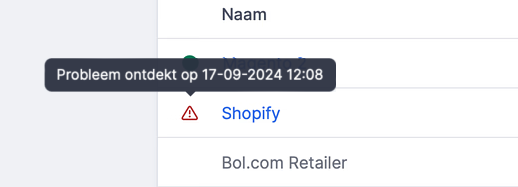
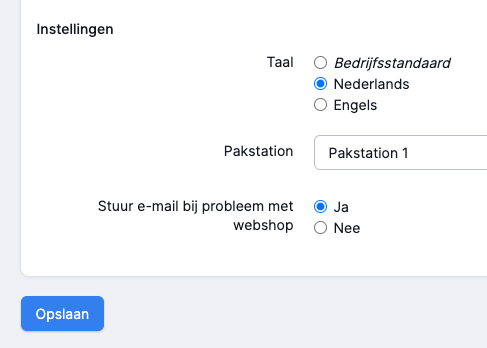
- The notification that you receive as an administrator when there is an issue with a webshop can now also be received by email. You can easily set this up via your account.
Cancellations from Bol.com
Orders that are fully canceled in Bol.com are now automatically canceled in Picqer. Previously, you had to check this manually and cancel the order yourself. This improvement saves you a lot of time and prevents canceled orders from being shipped.
For partial cancellations, you receive a notification so that you can adjust the products in the order yourself and prevent sending too many products.
Also, if an order has already been partially picked, you will receive a notification to ensure that the order is not wrongly shipped.
Other improvements
- Urgent and old picklists now get priority when creating a batch to prevent them from remaining open for too long.
- We have added a new integration with Cirro.
- For orders imported from Shopify, we now support importing the product name into Picqer.
- We have added a new API endpoint for registering a production of a composition.
- You can search in the order overview based on the customer's email address.
- In the shipments overview and on picklists, you can now see who created the shipment.
Looking back at Meet & Grill 2024

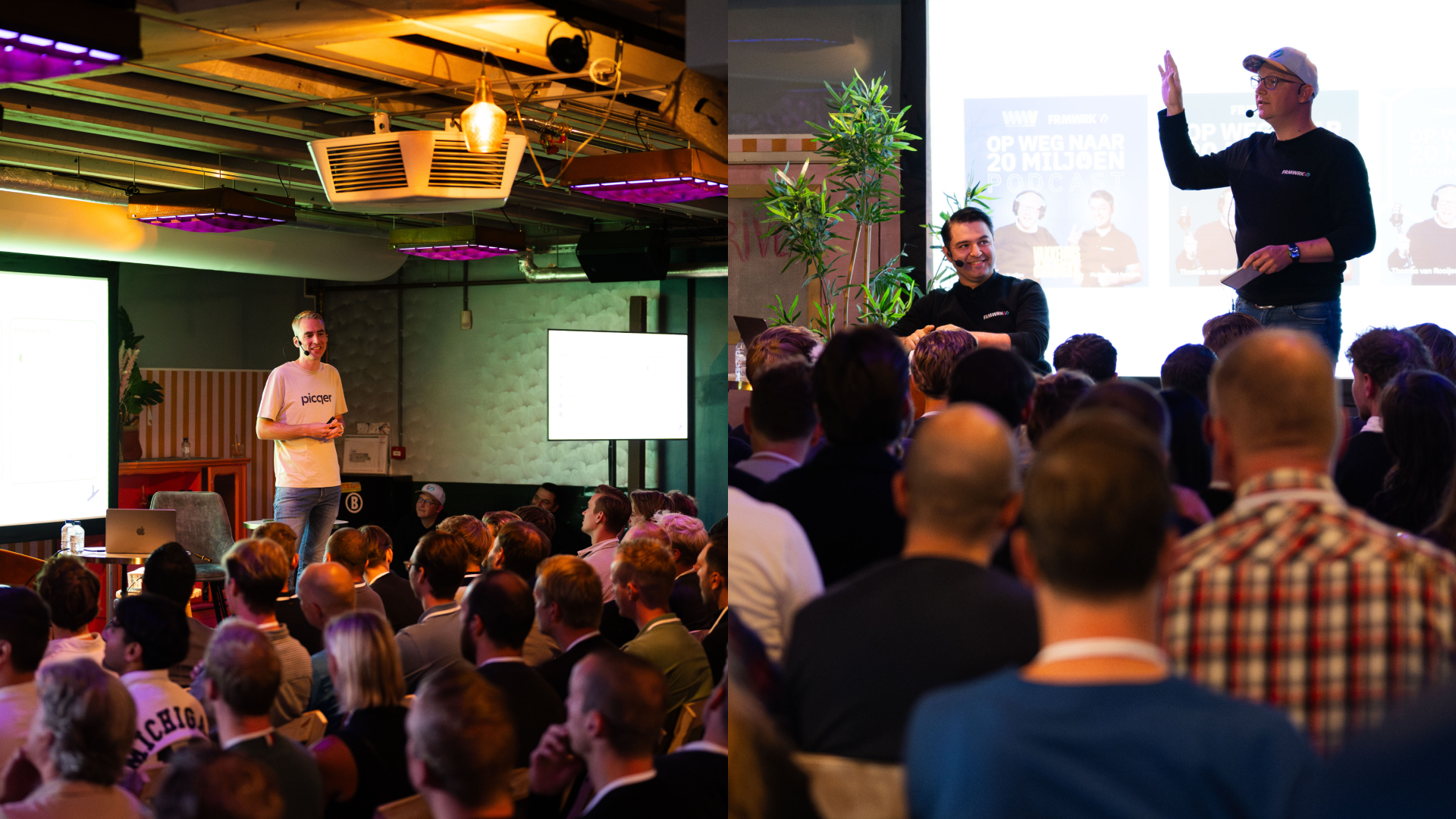
Our annual Picqer Meet & Grill was once again a fantastic day. The atmosphere was great, and it was a real pleasure to see and chat with all of you!
Casper kicked off the afternoon with a talk on the latest developments in Picqer. After that, Thomas and Muhammed from FRMWRK shared 8 valuable insights from their podcast Op weg naar 20 miljoen.
The spontaneous conversations that started during the talks and continued over drinks and food were a definite highlight. Thank you all for the energy and good vibes! See you next year for the 10th edition of Meet & Grill.
New integration: CIRRO E-Commerce
CIRRO E-Commerce is a shipping platform with a powerful transport network. The integration allows you to create shipping labels directly in Picqer with a single click, automatically announcing them to CIRRO E-Commerce.
About CIRRO E-Commerce
This platform stands out for its sorting facilities, its international partnerships with local teams in over 30 countries, and its strong transport network. CIRRO E-Commerce also offers customs clearance services.
Their transport network includes a variety of delivery partners, ranging from local businesses and bike couriers to internationally recognized carriers. With 15 hubs across Europe, they operate more than 100 routes connecting to last-mile delivery providers. In Europe, parcels can be delivered carbon-neutral upon request.
How the integration works
Connect Picqer with CIRRO E-Commerce to automatically create shipments within their platform. Once a shipment is created, shipping labels are printed and Track & Trace information is retrieved.
- Generate shipping labels with a single click, pre-announced to CIRRO E-Commerce.
- Retrieve Track & Trace information and automatically send a shipping confirmation to your customer.
- Use automation rules to apply the correct shipping profiles and delivery options based on order content.
- Take advantage of additional services such as label references, return labels, insurance, signature on delivery, Saturday delivery, and express options.
Connecting CIRRO E-Commerce to Picqer
To connect Picqer to CIRRO E-Commerce, you'll need an account with them. Already a customer? Contact the IT team. Want to become a customer? Get in touch with the sales team.
You can set up the integration via your Picqer settings by adding a new shipping provider. Then, add your shipping profiles with the appropriate settings so the shipping labels can be generated. Tip: always run a test order with a new shipping method before going live.
More info and setup guide
For more details on the integration, the full setup guide, and CIRRO E-Commerce contact information, visit our integration page.
Changelog
Changelog: Bulk processing of products and fast printing of labels of final locations
Process orders with the same product in bulk
In certain situations, you suddenly receive a large number of orders for the same product. For example, with a pre-order product that can now be delivered, backorders that are available again, or a successful promotion.
You can efficiently process these orders by bundling them into a singles batch. This way, you collect all the products from your warehouse in one go and then process them order by order at the packing table.
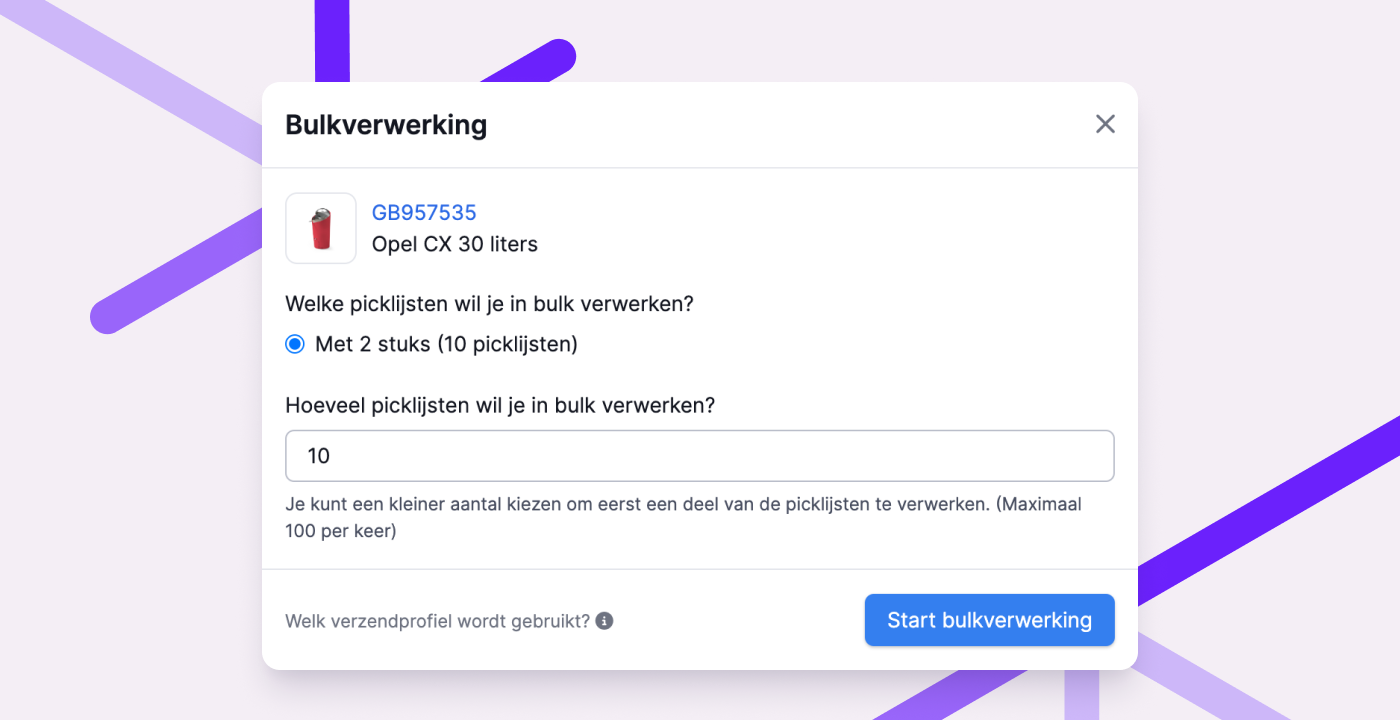
But it can be even faster. Now, all picklists from a singles batch, with the same product and the same quantity, can be processed at once. With one click, Picqer processes all picklists, and the shipping labels are printed. This saves you many mouse clicks and time. Since you're only processing orders with the same number of items, you put the correct number of products in each package and attach a shipping label. This also makes packing and shipping quick and easy.
Bulk processing is only available on the new batch pages. Not using these yet? Enable it via Experimental Features.
For more inspiration on bulk processing of products, check out this detailed blog post.
Print labels locations at once
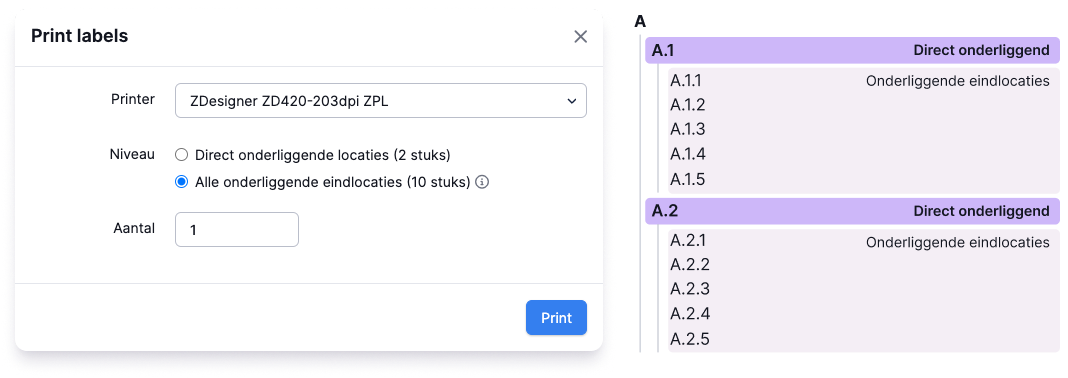
When printing labels for underlying locations, you can now choose to print the labels of all underlying end locations. This prints the labels of the locations at the deepest level.
For example, with one click, you can print labels from all end locations of an entire aisle. This can be useful if you forgot to print the labels while creating the locations in the wizard or if you want to start using location labels later.
Other improvements
- Setting up and managing exclusive locations is much easier, as you can now make locations ‘exclusive’ via location import, the wizard, and the API.
- You can set a preferred warehouse per fulfillment customer. We now also use this warehouse for returns, purchase orders, and receipts. This prevents stock from being registered in the wrong warehouse.
- You can view all movements of a product in the movement history on the new product page.
- You can view the stock history of a location or container through the detail page of that location and container.
- During picking in the app, you can now see which products are part of a composition with the help of a 'Component' label. This is useful if you want to assemble the products during picking.
- We have updated the display of purchase orders. Information is now shown separately in different 'cards', making it easier to intuitively find the correct details.
- We added a new API endpoint for shipments. With this endpoint, you can retrieve information about a specific shipment or all shipments.
- When importing products into an order, it no longer matters whether the quantity is specified as a numeric or textual value in the Excel file.
- The @ button to mention someone in a comment now works again after you have already typed something in the comment field.
- We now also include the
via_portalattribute in the API response of an order.
Looking for an older article? Browse the full blog archive with all articles.